
Build a newsletter template with AI from your website
Your website already has everything the template needs. The colours, the fonts, the logo and the tone. Here we show how to let AI pick all that out and then build the template in Paloma, step by step. You also get to see eight examples we built the same way, with images and logos made by AI.
What AI does and does not do
ChatGPT, Claude and Gemini can help you with two things when you make a template. They can describe your visual identity: which colours and fonts you use, what headings and buttons look like and the tone of your texts. And they can suggest a layout for the newsletter that fits what you want to say and who you send to.
But AI cannot judge what suits your readers. It does not notice if a colour gets too faint on mobile, if you have the wrong version of the logo or if the text does not sound like you. Nor does it always read the website as carefully as you might think. More on that in step 1. That is why we do the same thing every time: AI does the groundwork, and you or a colleague check the result before you send.
Expect about an hour the first time, including building the template in Paloma. The next template takes a quarter of an hour.
Two ways of working
How you go about it depends on what kind of AI you have.
With an AI chat. You write to ChatGPT, Claude or Gemini and get answers in the chat. The chat produces the brand profile, the layout, the texts and the images, and then you build the template yourself in Paloma by dragging and dropping blocks. The chat usually does not read the colours in the website's code, so you upload a screenshot. This is the way the steps below describe, and it works for everyone.
With an AI assistant in the browser. Some AI tools can work directly in your browser. The assistant opens your website and reads the colours and fonts in the code, so you get the exact codes. It can also build the template in Paloma for you. You describe what you want, look at the result and ask for changes. It is faster, but you need to review just as carefully. That is how we built the examples in this guide. How to do it step by step is in the section With an AI assistant.
What you need
- The address of your website and a screenshot of the home page.
- Your logo as a PNG file, preferably with a transparent background.
- A Paloma account. The free account is plenty for building the template.
- An AI tool. The prompts here work in ChatGPT, Claude and Gemini.
If you have brand guidelines you can upload them too. Then the AI does not have to guess, and the colour codes are right from the start.
Step 1: let AI get your brand profile from the website
Start by asking the AI to describe your brand profile. Paste this prompt and replace the address:
Look at the website https://www.yourwebsite.com and describe its visual identity for a newsletter. Give me: main colour, one or two accent colours and a background colour as hex codes; fonts for headings and body text, with a common email-safe alternative if the font does not work in email; what buttons look like (colour, shape, text); and three words that describe the tone of the texts. Answer briefly, as a list.
What happened when we tested it on our own website. We use paloma.se in steps 1 and 2. ChatGPT read the texts on paloma.se and described the tone well. But in ordinary chat mode it said honestly that it could not see the colour codes and fonts, because it reads the content but not the website's stylesheets. So we uploaded a screenshot of the home page and asked for the list based on the image. Then the answer came straight away. This is what it said, in ChatGPT's own words (translated from Swedish):
Paloma's visual identity for newsletters
- Main colour: Bright blue
#159FE3, logo and buttons.- Accent colours: Dark navy
#102D48, headings and dark areas. Light pink#F3A1B6, decorative elements and backgrounds.- Background colour: White
#FFFFFF, clean, airy areas.- Fonts: Modern sans serif, similar to Arial or Inter. Recommended for email: Arial Bold for headings and Arial for body text.
- Buttons: Bright blue background
#159FE3, white text, fully rounded corners (pill shape). Short, clear text, for example "Create a free account".- Tone: Reassuring, simple, personal.
The colour codes are estimated from the screenshot, not taken from the website's CSS.
Note the last line: ChatGPT itself says the colour codes are estimates. They are close, but not exactly right. In our stylesheet the main colour is #1C9AE6, not #159FE3. An AI assistant that can work in your browser can read the stylesheet and get the exact codes. If you use an ordinary AI chat, expect to give it a screenshot. If you have brand guidelines, compare the colour codes with them: an estimated colour can be a few shades off. The AI also works from how the website looks right now. So if a campaign colour is still on your home page, it may end up in the list.
Take a closer look at the fonts. Many web fonts do not show in email programs, and are then automatically replaced by a standard font. Ask the AI to suggest a similar font that works everywhere. In our example Inter became Arial, so that the template looks the same for every recipient.
Step 2: decide the structure together with AI
The next prompt is about what the template should contain. Say what you send and to whom:
We are [a club / a company / a municipality] and send a newsletter [once a month] to [members / customers / residents]. Suggest a structure for a reusable template with at most six blocks: what each block is for, roughly how much text it holds and where the button should go. Keep it simple and mobile friendly.
As a test we asked ChatGPT to suggest a layout for a monthly email from Paloma to our customers. It is ChatGPT's suggestion, not how our own emails look, but it shows what you can get back. It suggested five blocks, and for each block it wrote how many words it holds and where the button should go:
Suggested template for a monthly email from Paloma
- Logo and short introduction. Say welcome and highlight the month's main theme. 20 to 35 words, no button.
- Highlight of the month. A new feature, an improvement or a concrete way to get more out of Paloma. Preferably with an image. 60 to 90 words, blue button directly below the text.
- A tip you can use right away. A simple tip about newsletters, SMS, events or automation. Show an example if you can. 50 to 75 words, text link or blue button below the tip.
- In brief. Two short news items, for example a guide, an upcoming training session or a smaller product improvement. 20 to 35 words per item, one text link per item.
- Sign-off and contact. A personal greeting from Paloma, contact details and unsubscribe link. 15 to 30 words, no button.
A good layout can look like this: logo and a short introduction at the top, a main story with image and button, one or two shorter blocks and a sign-off with contact details and unsubscribe link. Remove what you do not need. A template with fewer blocks is easier to fill every time. That makes it more likely the newsletter actually gets sent.
Save the answer. The number of words per block is worth its weight in gold next time you write, and it is what you give the AI when you ask for help with the texts.
Step 3: build the template in Paloma
Now you have a brand profile and a layout. Then you build the template in Paloma, without writing any code.
- Choose a starting point. Choose a layout template if you want to decide the look yourself, or a design template that already resembles the layout the AI suggested. There is more on the difference in our guide to newsletter templates.
- Add the brand profile. Use the hex codes from step 1, choose the fonts and upload the logo. Change the colours of backgrounds, buttons and headings. You do this when you build the template, not before every send.
- Build the structure. Drag in the blocks you chose in step 2 and remove the ones you do not need. Write short help texts in the blocks, for example "Main story, 60 to 90 words". Then you know what to fill in next time.
- Add the fixed parts. Contact details, links to your website and social media, and the footer. Paloma adds the unsubscribe link and the link to view the email in a browser automatically.
- Save as a template. Now you have a template to start from every time you send.
Do not ask the AI to write a finished HTML template. Paloma's editor builds emails from blocks that you drag and drop, and it does not accept a whole HTML page. You lose nothing: the blocks are what let you swap an image or move a paragraph without touching any code. Let the AI help you with the brand profile, the layout, the texts and the images, and do the building itself in Paloma.
If you want help with the texts in the blocks, ask the AI to write them based on the tone from step 1 and the word counts from step 2. In the guide on writing newsletters with AI we show how.
Step 4: test it and let someone look
Send a quick test to yourself. Quick test (Snabbtest) is in Paloma when you work on the email, and it only sends to the addresses you enter, never to a list. Open it on your phone and on your computer. Always check these things, even if the AI has done a good job:
- The colours. Does the text stand out against the background? Does the button look like a button? When we built the make-up shop's email below, a thin line between two sections disappeared when the email was rendered, and in the hotel's email a price box baked into the image sat right above the real price box. You only spot that kind of thing when you look.
- The logo. Right version, right size, not blurry. If you add the logo at full width it can fill the whole email. Shrink it until it is about the same size as on your website.
- The links. Do they go where they should? Is the unsubscribe link still there?
- The tone. Does it sound like you? The AI works from the texts on your website, but they may not sound like you do when you write to your readers.
- The sender. Right name and right address, so that recipients recognize you.
Ask a colleague to take a look before the template is used for real. A colleague spots things you have missed.
With an AI assistant in the browser
You do the steps above yourself, with an AI chat to help. If you have an AI assistant that can work in your browser, it does the same steps for you. You do not build anything yourself; you describe what you want and review. This is how:
- Log in to Paloma yourself. The assistant works in your browser, where you are already logged in. Never give it your password.
- Give the assistant the task. Say which website the brand profile should come from, what you send and to whom, and what it must not do. Feel free to start from the prompt below the list.
- Ask for the brand profile and layout first. Let the assistant show the colour codes, the fonts and the blocks before it builds. Correct what is wrong. It is easier to change a list than a finished template.
- Follow along while it builds. The assistant works in a tab in your browser, and you can see what it does. Speak up straight away if something goes in the wrong direction.
- Review with a quick test. Ask the assistant to send you a quick test. Open it on your phone and on your computer and go through the same points as in step 4. Ask for changes and a new quick test until everything is right.
- Save as a template. When you are happy, save the email as a template, or ask the assistant to do it.
Open www.yourwebsite.com and read the colours, fonts and logo in the website's code. We are [a club / a company / a municipality] and send a newsletter [once a month] to [members / customers / residents]. Suggest a layout with at most six blocks and show me the brand profile and the layout before you build. Then build a new email in Paloma from an empty layout template, with email-safe fonts. Do not send anything to any list, and do not change or delete anything else in the account. Send me a quick test when the email is ready.
The last sentences of the prompt are important. The assistant can do anything you can do in the account, so say clearly what it may and may not do. It is always you who sends to your recipients, after you have seen the quick test yourself.
Images and logos with AI
What lifts a newsletter most is a good image at the top. If you have your own photos, use them. If you do not, AI can make them, and that is how all the images in the examples below came about. The photos, the club crest, the municipal coat of arms and the small company logos were made with ChatGPT's image tool. Nothing comes from a stock photo library. We show it openly, because it is one of the things AI does best right now, and anyone who knows how it works can do the same.
A photo. Describe the subject, the light and the format, and say that the image should contain no text. This is how we asked for the image for the club's email:
Create a photorealistic image in 3:2 landscape format: a medal ceremony after a youth football tournament in Sweden, a team of ten to twelve-year-olds in green match shirts cheering with medals around their necks on a grass pitch, parents applauding in the background, warm May light, no text.
And this is how we asked for the motorcycle image:
Create a photorealistic product image in 16:10 landscape format: a black naked motorcycle without a brand name, photographed at an angle from the front in a dark workshop with warm side light, glossy concrete, no people, no text.
A logo. If you have no logo, AI can make a simple mark that holds the email together. The club crest, the coat of arms and the small company logos in the examples were made that way. Describe the shape, the colours and the style, and ask for a plain background:
Draw a classic club crest for a Swedish football club called Stenhagens IF, founded in 1932: a shield in dark green and white with a football, oak leaves and the year, in the style of Swedish sports clubs, flat and clear, on a white background.
Always check that the mark does not resemble a real club's or a real company's. We searched for every made-up name before we used it, and changed one that turned out to exist.
Three things to keep in mind. Write "no text" in prompts for photos, because text in AI images easily goes wrong; put the heading in the email instead, where it can be changed. The exception in the examples is Kallström Ski, where the heading sits in the image: there we asked for exactly that text and checked every letter. Ask for "without a brand name" on products, so that no real brand turns up. And show the images to a colleague before you send: a hand with six fingers or a sign with made-up letters is not always noticed the first time.
Save the prompts that work. Next time you only change the subject, and the email keeps the same style.
What the law says about AI images in newsletters
- Real people. In advertising and other commercial marketing you normally need a person's consent to use their name or image (in Sweden under the Act on Names and Images in Advertising), and that also applies to an AI image depicting the person. An image that can be linked to a real person is also personal data under the GDPR, so you need a legal basis to use it. Our advice is simple: do not ask the AI for an image of a real person. Use a real photo that the person has approved.
- Say that it is AI. Since 2 August 2026, the EU AI Act, Article 50, requires anyone who uses AI to make an image that resembles real people, places or events and could be mistaken for genuine, a so-called deepfake, to state clearly that the image was made or altered with AI. A photorealistic image of a made-up person can count; an image that is clearly an illustration does not, and the requirement is lighter for artistic and fictional content. A clear caption, such as "This image was made with AI", is a simple way to meet it, and that is what we do in this guide.
- Famous characters, logos and works. Do not ask for a famous character, a real logo or an image that resembles a well-known work. It can infringe someone else's copyright or trademark. An artist's style is not protected in itself, but still stay away from named artists.
- Copyright in the image. An image made by AI without your own creative input normally has no copyright protection. Others can therefore use the image without asking you, and the tool's terms may limit how you yourself may use it.
- What you upload. If you upload your own photos, logos or other material to the AI tool you must have the right to use them, and if they contain personal data the GDPR applies. Do not upload images of members, customers or residents without being sure of this.
- Marketing law. In marketing the image must not give a misleading picture of what you offer, for example a product or premises that do not look like that in reality (in Sweden, the Marketing Practices Act).
We are not lawyers, so ask a lawyer if you are unsure.
Eight examples, built the same way
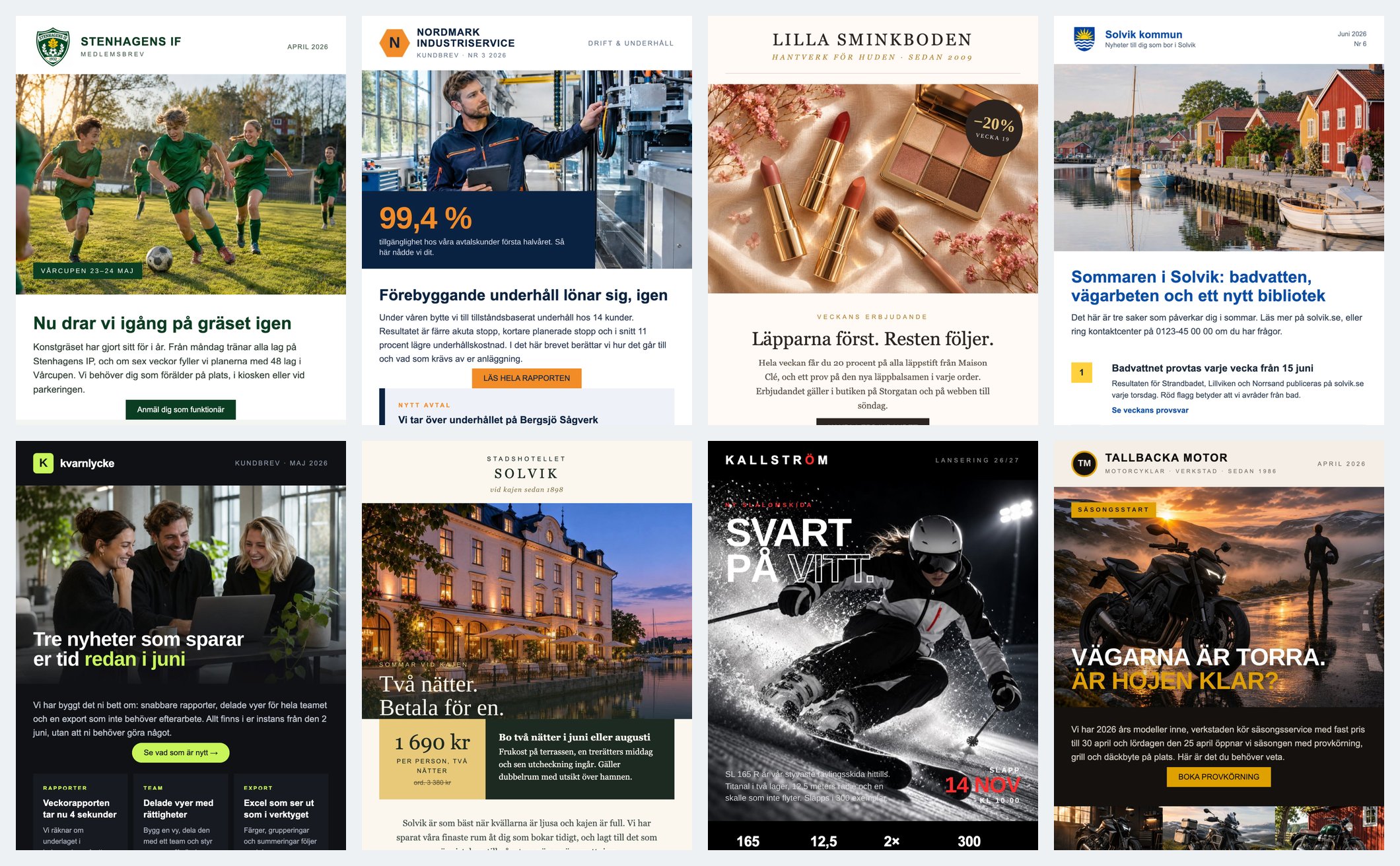
We built eight emails in an ordinary Paloma account to show how it works for different senders. The brand profile, the layout and the images were produced with prompts like the ones above. The building itself differs from when you do it yourself: we had an AI assistant build the emails in Paloma with code, instead of dragging and dropping blocks. More on that further down. The senders are made up, so that we can show how a brand profile becomes an email without showing any customer's sends. Six are recurring newsletters, two are campaign emails with a single message. Look at how different they are in colour, both inside the email and around it. It is the brand profile that decides, not the tool.
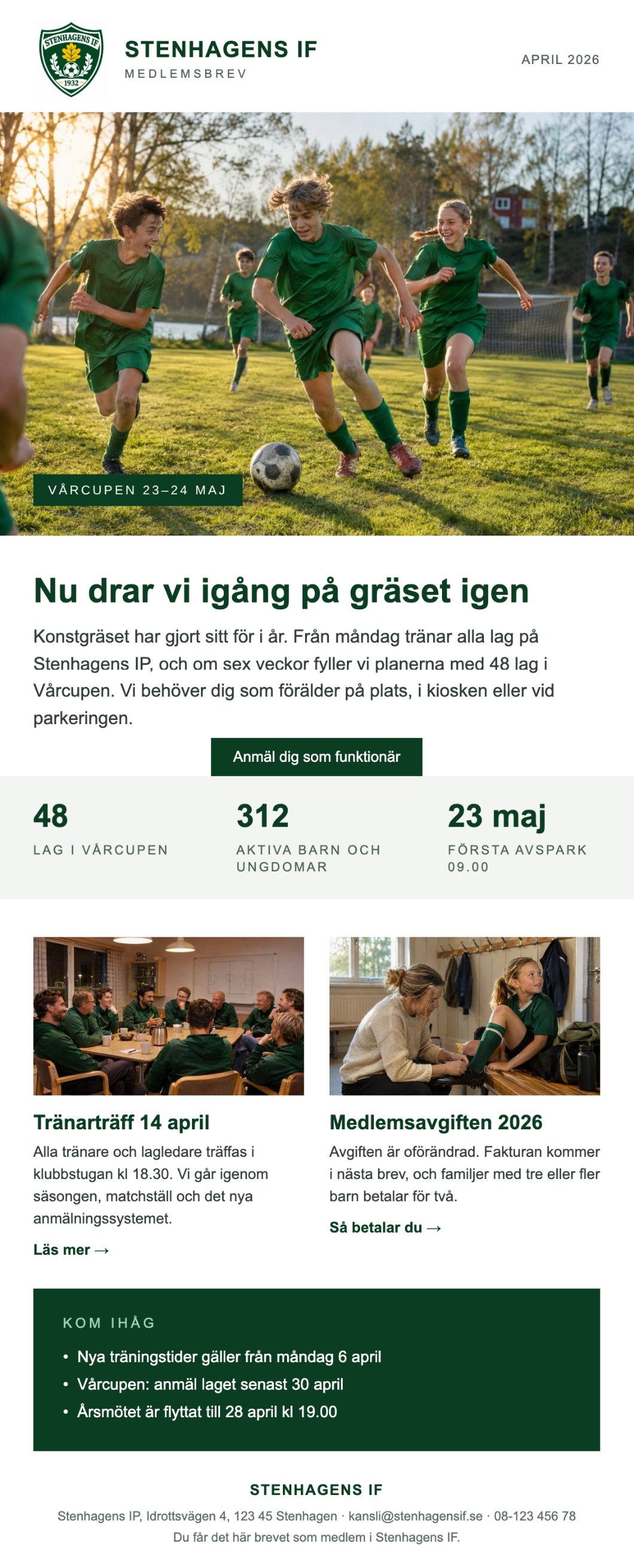
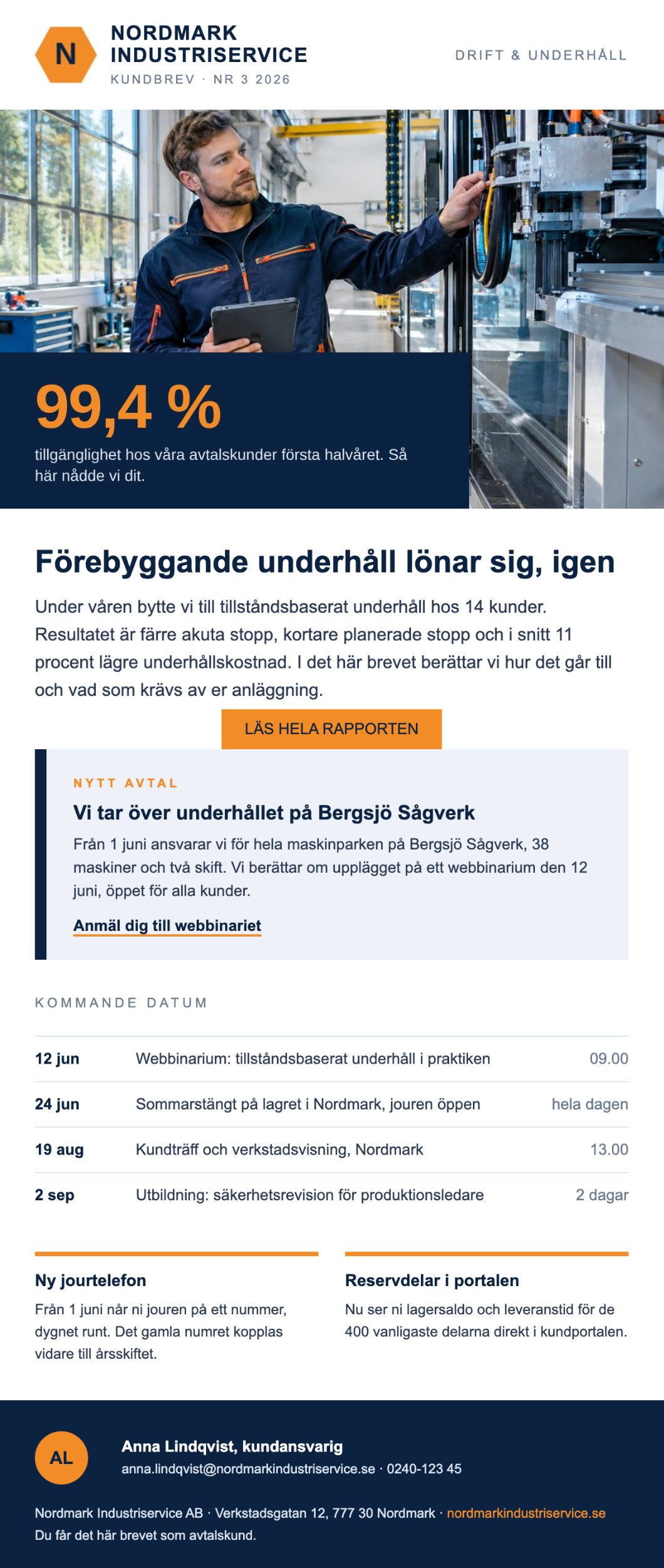
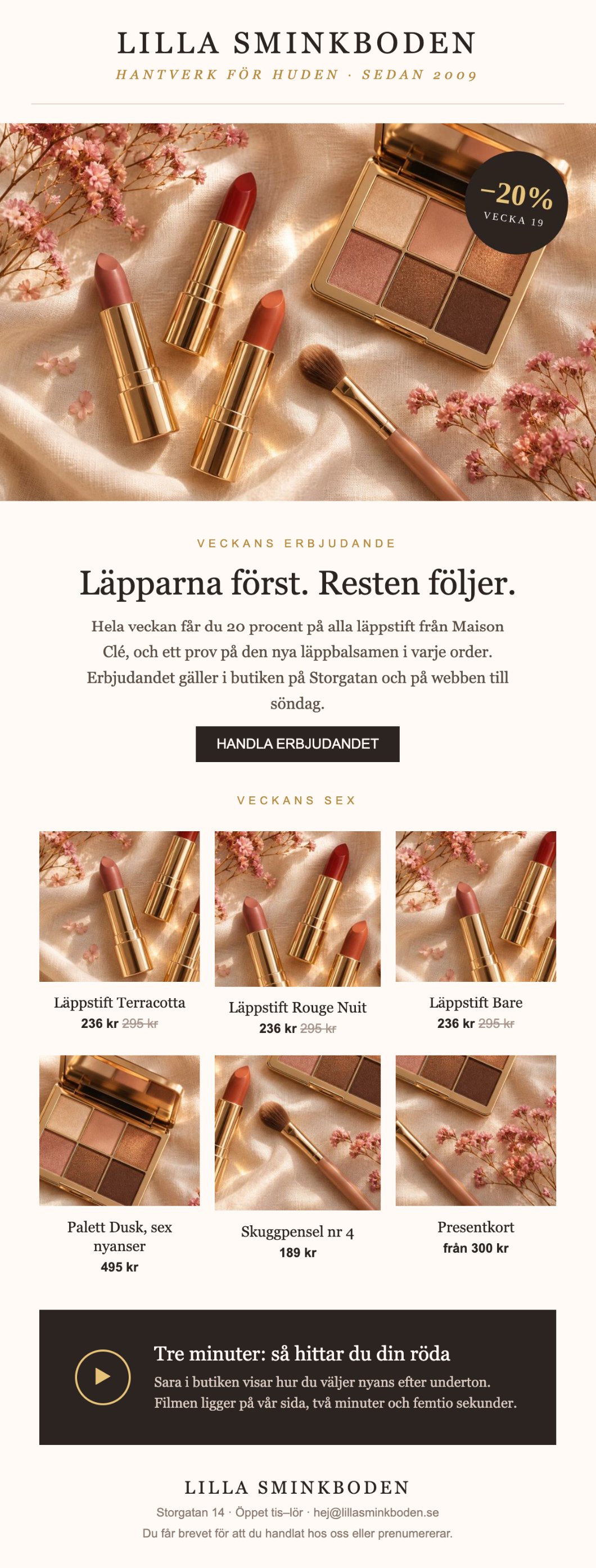
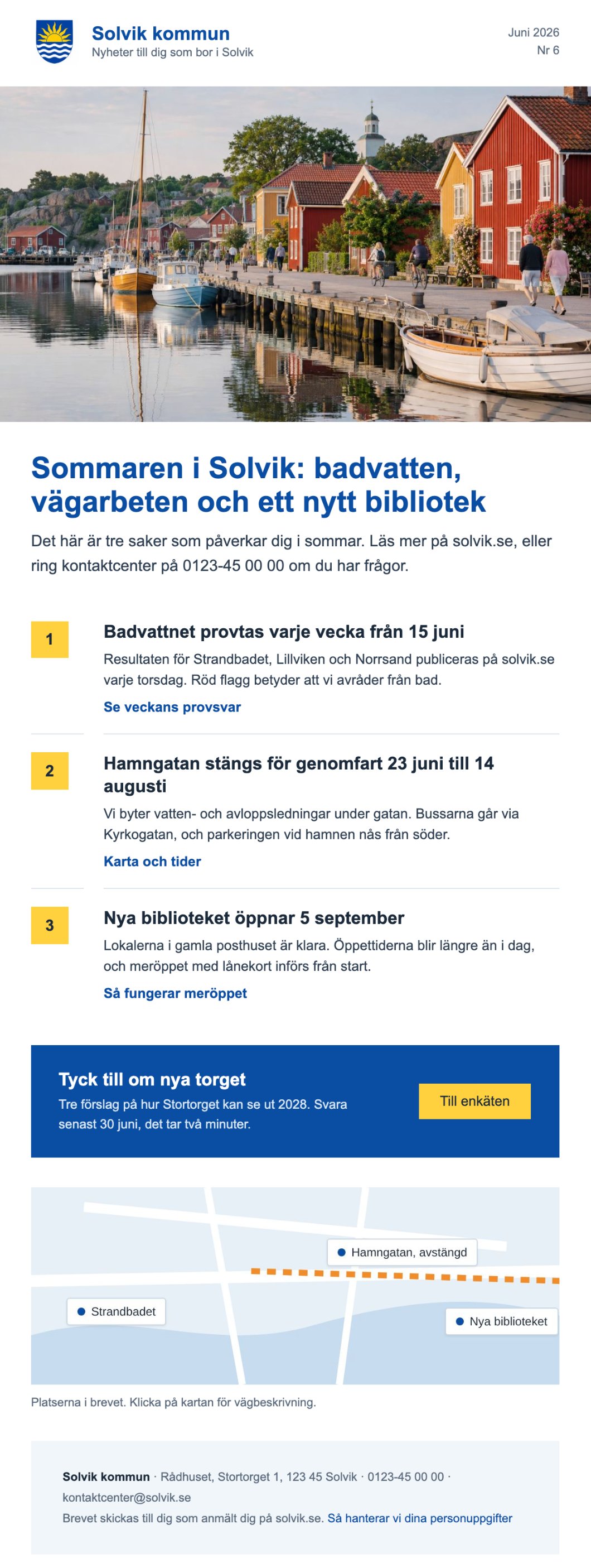
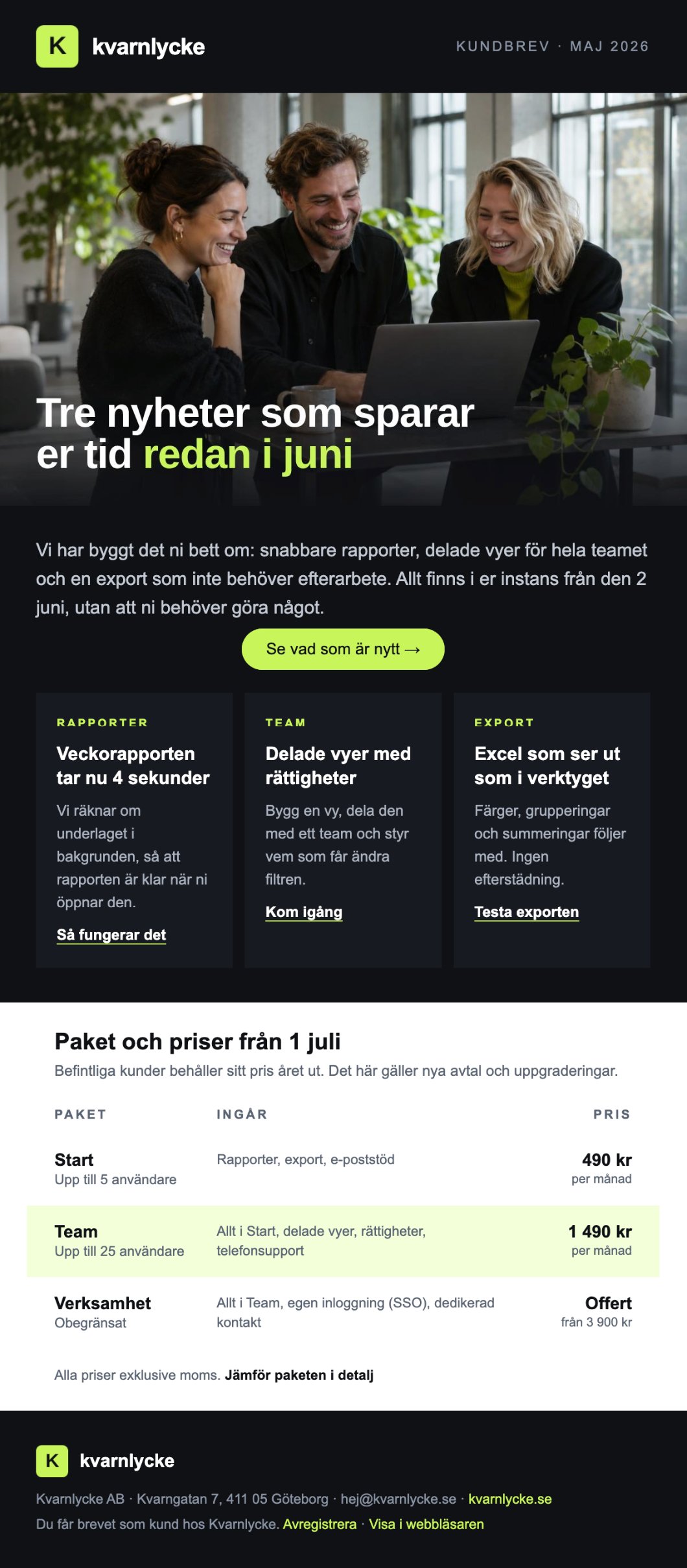
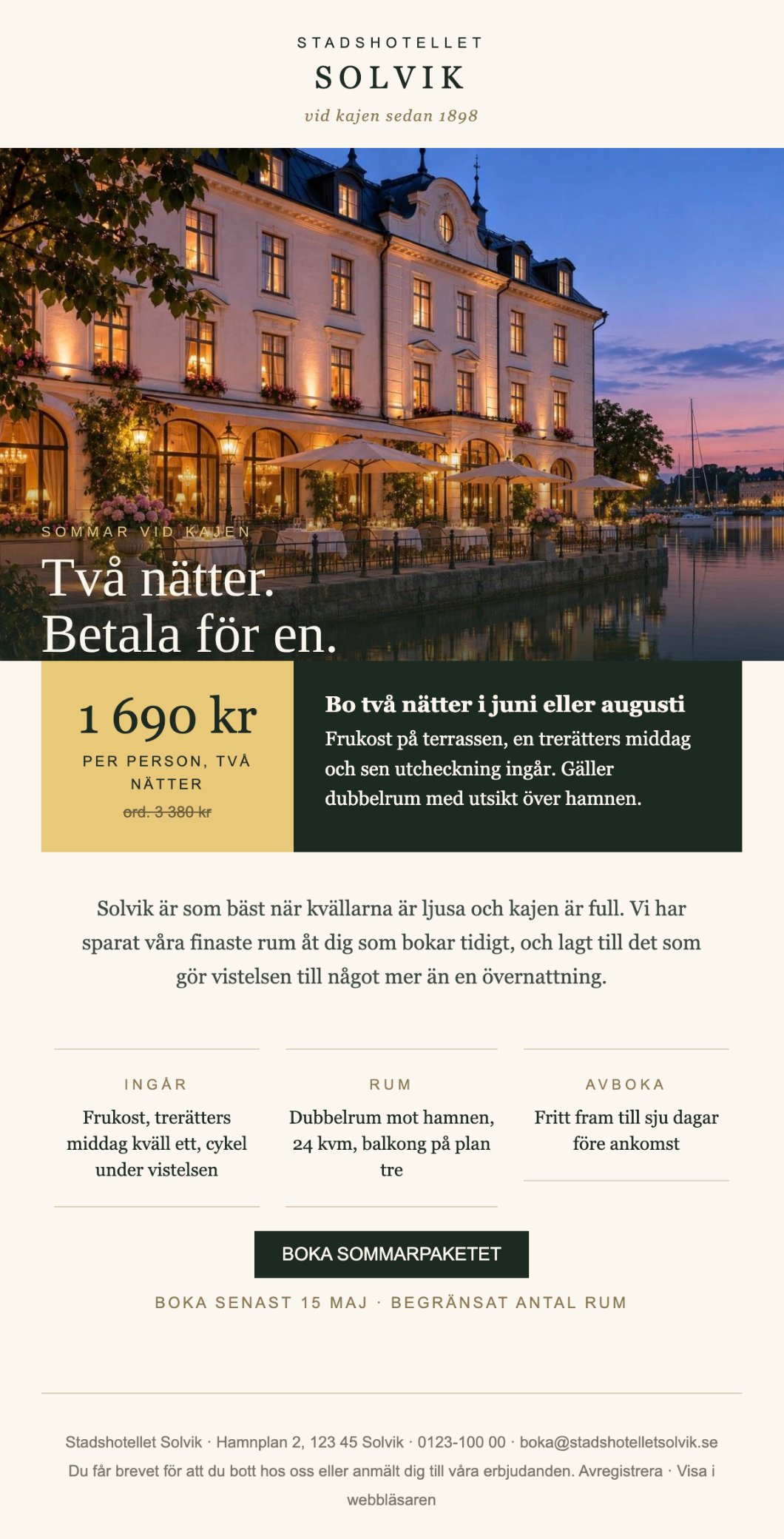
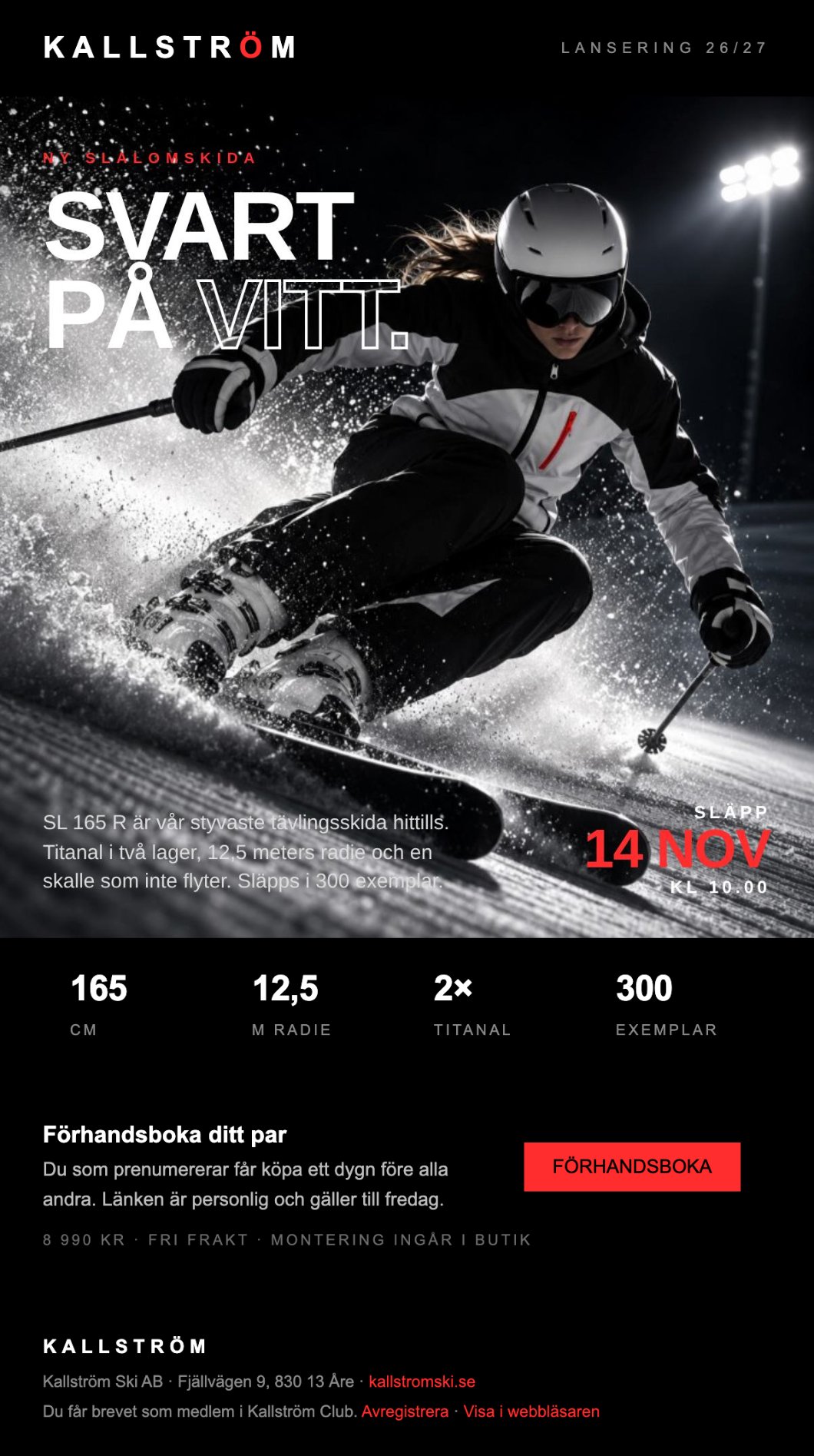
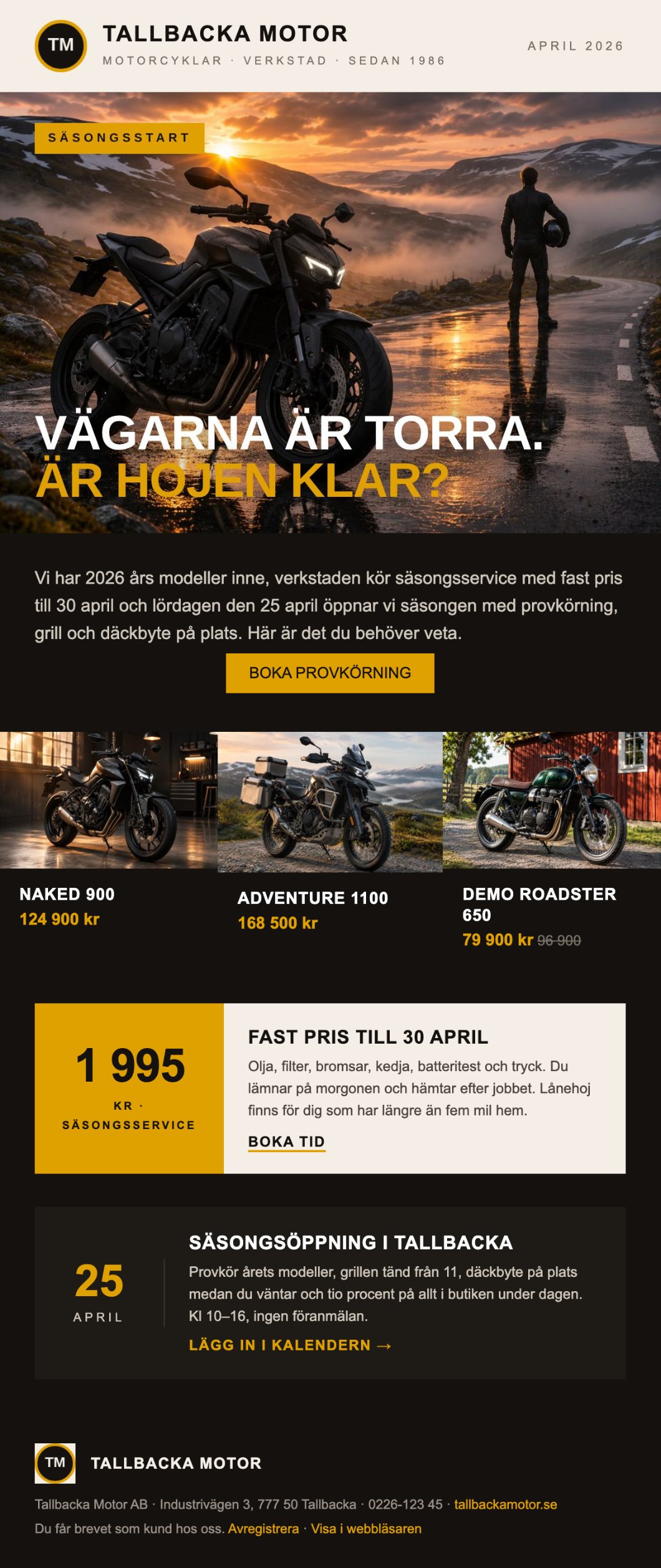
All eight were built over two evenings, including the images, the prompts and the checks. It was not the AI that took time, but going through the result and correcting what went wrong. Read more in step 4.
Common mistakes
- Trusting the colour codes without looking. An AI working from a screenshot estimates the colours. Compare with your brand guidelines or your website before you build.
- Too many blocks. Six blocks to fill every month soon become two. Build the template for what you actually have the energy to write.
- Web fonts in email. The font from your website is rarely available in the recipient's email program. Choose the email-safe alternative from the start, and you avoid surprises.
- The logo at the wrong size. A logo that fills the whole width looks like a banner. Compare with how big it is on your website.
- Skipping the quick test. The template can look good in the editor. But it is on mobile and in Outlook that you see whether it holds up.
How we do it ourselves
This is not just theory. AI and Paloma already work well together, without us having to build any AI of our own into the tool. When a new customer wants a template in their own brand, we now let an AI assistant make the first version. It reads the customer's website, picks up colours, images and shapes, builds the template in the customer's account and sends a quick test. The first time it took an afternoon. Now it takes a few minutes. Then one of us checks the result before the customer gets the template. We do that every time.
The eight examples in this guide were built exactly that way. The AI assistant did not drag in blocks the way you do. It wrote code in the browser that put the blocks straight into Paloma's ordinary editor: text, image, button and columns, the same kinds of blocks you have. The images and logos were made in ChatGPT with prompts like the ones above. We looked at every email in Paloma's preview, asked for changes and looked again. If you would rather have us make the template for you, that is fine too, of course. Get in touch via the contact page, and we will tell you how it works.
Frequently asked questions about templates with AI
Do I need to know HTML or code?
No. The AI helps you with colours, fonts and layout. Then you build the template by dragging and dropping blocks in Paloma. No code needed.
Which AI tool should I use?
The prompts in this guide work in ChatGPT, Claude and Gemini. In an ordinary AI chat, expect to upload a screenshot of your home page: the chat reads the text on the website, but usually not the colours and fonts in the code. An AI assistant that works in your browser can read the code directly.
Can the AI see the colours on my website?
It depends on the tool. When we tested on our own website, ChatGPT in ordinary chat mode said it could read the content but not the stylesheets. When we uploaded a screenshot we got a list of hex codes within seconds, and ChatGPT itself pointed out that the colours were estimates. They were close but not exactly right. An AI assistant that works in your browser can read the stylesheet and get the exact codes. Either way, check them against your brand guidelines.
Can I share my website and logo with an AI?
Your website is already public, so that is no problem. The logo and brand guidelines are usually not sensitive either. But never give customer details, contact lists or anything else with personal data to an AI tool without first checking how the provider handles the data.
Can the AI build the template directly in Paloma?
Yes, if you use an AI assistant that can work in your browser. That is how we do it ourselves today: the assistant writes code that puts the blocks into the editor. But for most people it is easier to let the AI produce the brand profile and the layout and then build the template themselves in Paloma. It is fairly quick, and you learn how the template works at the same time.
Can I paste in HTML that the AI has written?
Not in the newsletter editor. Paloma builds emails from blocks, so that you can change them without code, and it does not accept a whole HTML template. Let the AI produce the brand profile, the layout, the texts and the images, and build the blocks yourself. In Paloma Event, however, you can paste HTML into the event description. We show that in the guide on event pages with AI.
May I use images that AI has made?
Yes, in most cases. The images in this guide's examples were made with ChatGPT, and using them in your own emails is allowed under the tool's terms. Read the terms of the tool you use, and never ask for an image of a real person or a real brand. Say that the image was made with AI, as we do here: for a photorealistic image that could be mistaken for genuine, a deepfake, the EU AI Act requires it. There is more in the fact box in the section on images.
How long does it take?
The prompts take a few minutes. The first time, building the template in Paloma takes half an hour to an hour, depending on how much you change in the design template. The next template goes considerably faster.
How often should I update the template?
When your website or brand changes, or when you notice that a block is never used. Go through step 1 again once a year and compare the result with the template.
Build your first template today
Create a free account and build the template right away, while you have the AI's suggestions in front of you. The free account gives you 250 emails a month with an unlimited number of contacts.
Create a free account