
How to build an event page with AI in Paloma Event
In Paloma Event you can paste your own HTML code into the event description. That means you can let AI write the text, suggest how the page should look, produce the code and make the images. Then you paste it all into Paloma. Here you get the prompts, the steps in Paloma and six examples we built the same way.
What AI does and does not do
Three things take time when you build an event page: writing a text that makes people sign up, making the page feel like you, and including all the practical information. ChatGPT, Claude and Gemini can give you a first draft of all three. The AI writes an invitation in the right tone and suggests colours and how the page should look. Then it produces HTML code that Paloma displays exactly as it is.
But the AI does not know which details are correct. When we tested it, ChatGPT made up times and prize categories. It marked them as suggestions, but they would still have ended up on the page if we had not read through the text. Nor does the AI see how the page works on mobile or whether something clashes with what Paloma already shows. So do as in our other AI guides: let the AI do the groundwork, then go through everything before you publish the page.
Following the guide takes about an hour the first time. You make the next event page in a quarter of an hour, because you can reuse both the prompts and the code.
Two ways of working
How you go about it depends on what kind of AI you have.
With an AI chat. You write to ChatGPT, Claude or Gemini and get the text, the colour suggestions and the code in the chat. Then you paste the code into Paloma Event yourself, upload the images and set the colours. This is the way the steps below describe, and it works for everyone.
With an AI assistant in the browser. Some AI tools can work directly in your browser. Then the assistant can do the same steps for you in Paloma Event: paste the code, upload the images and choose the colours. You describe what you want, look at the page and ask for changes. It is faster, but you need to review just as carefully. That is how we built the examples in this guide. How to do it step by step is in the section With an AI assistant.
What you need
- Facts about the event: date, time, venue, price, what is included, the registration deadline and who answers questions. Write the details down first, so the AI does not have to guess.
- Your brand profile: two or three colours as hex codes and a font. You can also use the list from the template guide.
- An image for the header, 1040 by 300 pixels, and preferably a logo. If you have no image, AI can make it. We show how further down.
- A Paloma account with Event. The free account is enough to build and preview the page.
- An AI tool. The prompts work in ChatGPT, Claude and Gemini.
Step 1: let AI write the text
Give the AI the details of the event and ask for short sections instead of one long text. The sections then become boxes and columns on the page. This is what we wrote to the AI about the gala in the examples:
We are the Solvik business association and are holding an autumn gala for business owners in the municipality on Friday 20 November at 18.00 at Stadshotellet, with a three-course dinner, awards in four categories and a live band. The price is SEK 895 per person, dress code jacket and tie, registration by 10 November. Write the content for the registration page: an introduction of at most 50 words, the evening's programme with times, the four award categories with one line each, and a short box with practical information. The tone should be warm and festive but not vague. Answer as headings and short paragraphs, no HTML yet.
After a few seconds we got an introduction, four programme points, four categories and a box with practical information. This is what the answer said, in ChatGPT's own words (translated from Swedish):
Solvik Autumn Gala 2026. A festive evening for the municipality's business owners
Welcome to an evening where we celebrate enterprise in our municipality! On Friday 20 November we gather at Stadshotellet for a festive evening with a three-course dinner, awards, music and great company. Together we honour the people and companies that make a difference in Solvik.
The evening's programme. 18.00 Welcome drinks: we start the evening by mingling and meeting other business owners. 18.45 Please take your seats: we sit down and enjoy a three-course dinner. 20.30 Awards: we honour this year's winners in four categories. 21.30 Live music and party: the live band takes the stage and the evening continues with music and dancing. The times after 18.00 are suggestions and can be adjusted when the programme is final.
We honour this year's business owners. Business owner of the year, for successful business and importance to the municipality's economy. Young business owner of the year, for a young entrepreneur who shows drive and faith in the future. New business of the year, for a promising start-up with good prospects. Sustainable company of the year, for a company that makes a difference through its sustainability work. The award categories are suggestions until they are confirmed.
Practical information. Friday 20 November 2026, 18.00. Venue: Stadshotellet. Price: SEK 895 per person, including a three-course dinner. Dress code: Jacket and tie. Registration deadline: 10 November.
The text was good, but read it carefully. We had not said when dinner would start or what the categories were called. So the AI made up "18.45 Please take your seats" and "Young business owner of the year", and wrote that they were suggestions that needed confirming. It is good that the AI says what is a suggestion, but you still have to check the details. Correct what is wrong, remove what you have not decided and save the text.
Change the start of the prompt so that it is about your event. The more facts you give, the less the AI makes up.
Step 2: decide the design together with AI
Now you have the text divided into sections. Describe your brand profile and ask the AI to suggest colours and how the page should look:
Good. Now the design. The association's profile is dark and festive: an almost black background, gold as the accent and a serif font in the headings. Suggest a colour palette with hex codes (background around the page, background on the page, text, accent, links) and how these parts should look: the programme as a row of boxes, the award categories as four cards in two rows, practical information as a coloured box. Answer briefly, as a list.
We got five hex codes: almost black around the page, a warm dark colour on the page, ivory text, muted gold as the accent and a lighter gold for the links. The AI also suggested Georgia for the headings and Arial for the body text, and wrote a line about how each part should look. Do you already have set colours? Put them in the prompt instead of describing the feeling, and the codes will be right straight away.
Notice that the palette has two backgrounds. In Paloma Event you choose one colour around the page and another on the page itself. Those two colours are what make the event pages in the examples look so different. In step 4 we show where you set them.
Step 3: ask for the code
Now the text and the design are to become a finished page. The event description in Paloma can contain HTML code, so ask the AI to turn the text and design into code. Include all the requirements in the prompt, and the code will work in Paloma's editor.
Now turn the text and design into HTML that I can paste into the description field of an event page in Paloma Event. Requirements: only the content (no html, head or body tag, no style tag and no script), all styles as inline style on the elements, tables for the columns so that it works in a simple editor, no external images or fonts, at most 700 pixels wide. Do not include the heading, the date, the venue or the registration button, Paloma adds those itself. Give me only the code.
We got just over a hundred lines of code. In the top right corner of the box there is a button that copies everything:
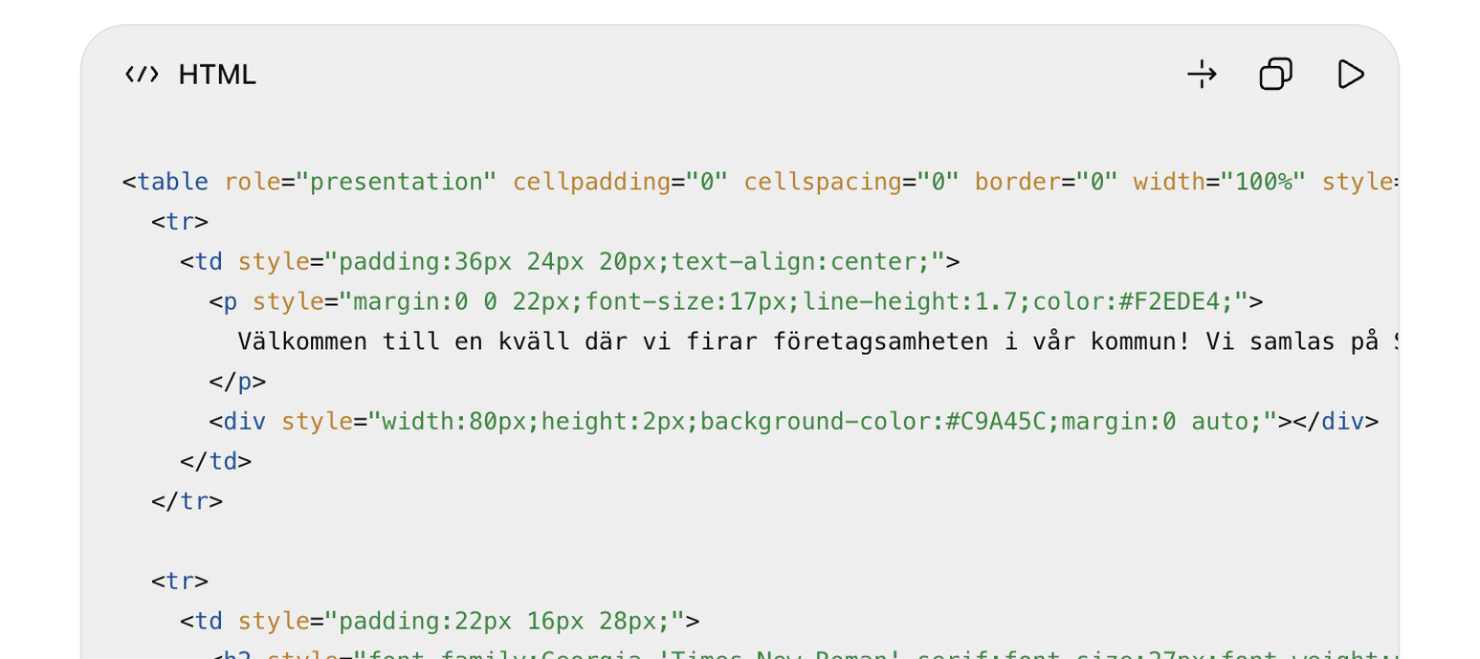
You do not need to be able to read the code, but it is good to know why the requirements are there:
- Only the content, no scripts. Paloma shows the content as part of the event page. Code that tries to control the whole page is removed or causes problems.
- Inline style. The editor saves styles that sit directly on each part of the page, but not a separate block of styles. So colours and spacing need to be in the code for each part.
- Tables for columns. Boxes side by side work most reliably as tables, both in the editor and in older browsers. In one of the examples the AI built the programme with a newer technique. Then the cards ended up below each other.
- At most 700 pixels. The description is shown in a column next to the contact details. If the content is wider, the page gets a horizontal scroll bar.
- Not the heading, the date and the button. Paloma adds those itself above and below the description. If they are in the code as well, they are shown twice.
Step 4: paste into Paloma
- Create the event. Go to Event and choose New event. Fill in the name, date and venue, and add at least one booking type. Paloma then shows those details above and below the description.
- Open the event description. Click the heading on the event page, and the settings open. Choose Event description in the menu on the left. You write the description in an ordinary text editor. Furthest to the left in the toolbar is the Source button. It shows the code behind the text.
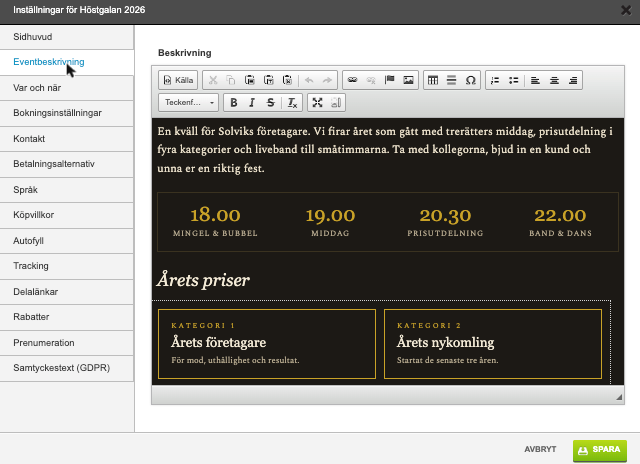
- Click Source, select everything and paste. Now you see the code behind the description. If the field is empty, that is fine too. Select everything in the field, paste the code from the AI and click Save. Want to see the result before you save? Click Source again, and the text is shown as usual.
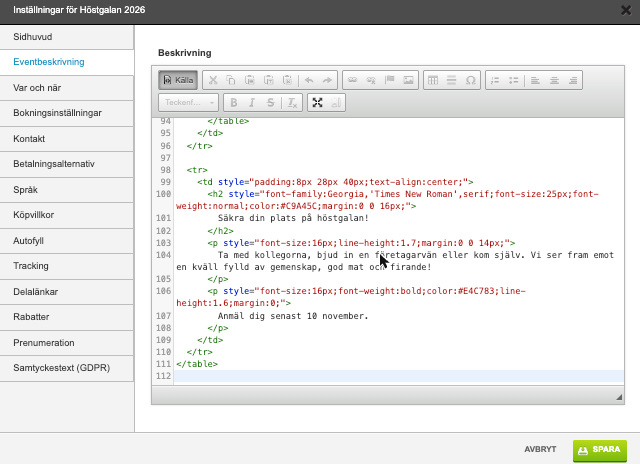
- Add the images. Under Header in the same settings you upload the cover image (1040 by 300 pixels) and the title image, for example the logo, which is shown next to the heading. Larger images are scaled down.
- Set the colours in the design panel. To the right of the event page are the Design settings. Under General you choose the outer background colour (around the page), the inner background colour (on the page), the text colour and the link colour. Use the hex codes from step 2. Under Header you choose the colour and font of the heading. Under Booking you choose colours for the booking table, so that it matches the rest of the page.
- Preview. Click the eye in the top right to see the page as visitors see it. Go through step 5 before you publish.
You can change the text directly in the editor afterwards, without opening the code. Want to change a colour or a spacing? Ask the AI to make the change and paste in the new code.
Step 5: review before you publish
This is how the gala's page looked right after we pasted in ChatGPT's code, and after half an hour of polishing:
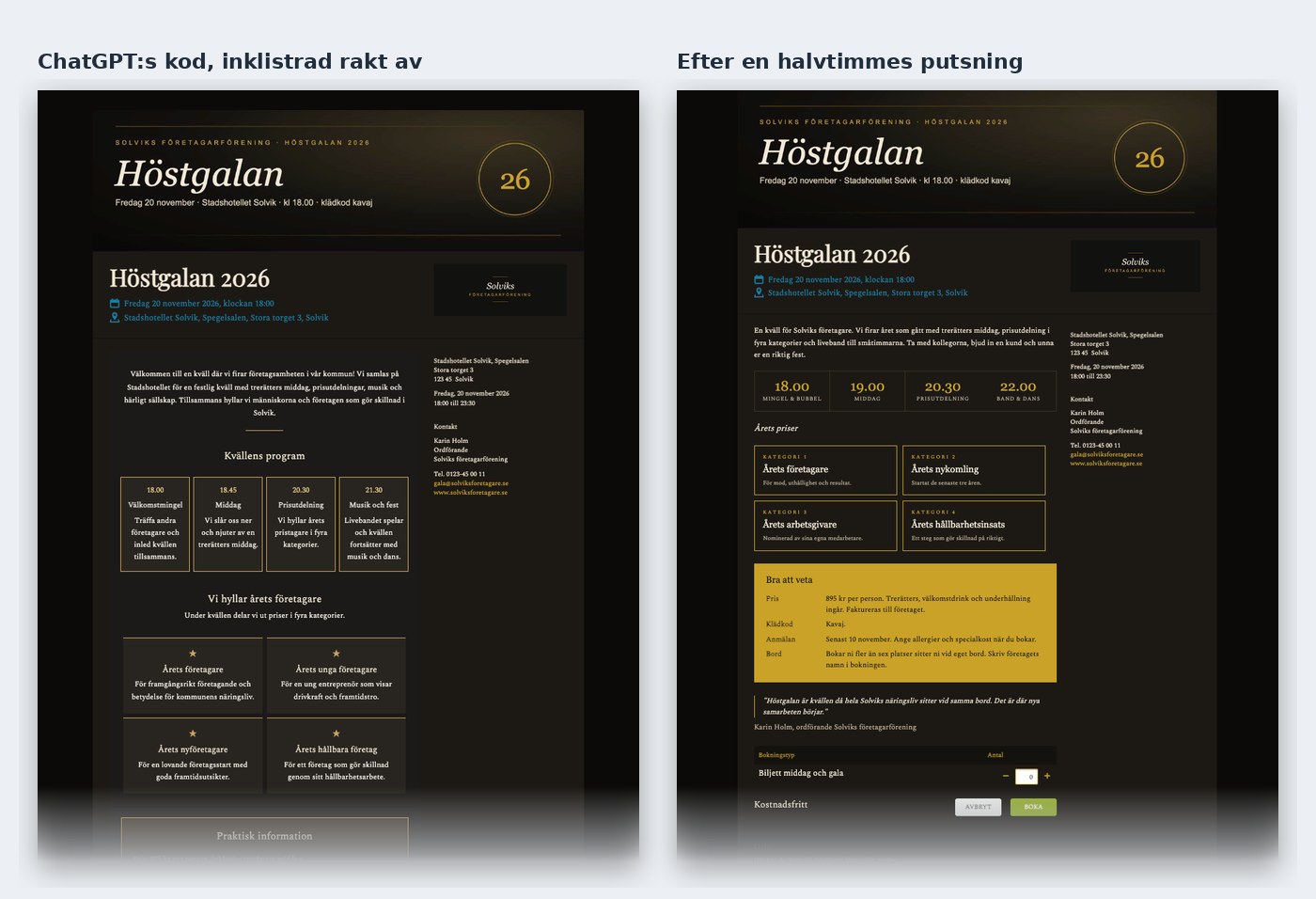
The code worked straight away, and that is the most important thing. What we changed were things you only notice when you review the page:
- Facts. We replaced the made-up times and categories with the real ones, and added a line about table booking because that question always comes.
- Duplicates. The AI had added an extra call to sign up at the bottom, even though Paloma already shows the booking there. We removed it.
- Mobile. Four boxes side by side get cramped on mobile. We shortened the text in the boxes and made the figures smaller.
- Contrast. The grey text on a dark background looked nice on a computer, but could not be read in sunlight. We made it lighter.
- Fonts. Some fonts in the design panel are only shown in normal weight, so bold does not show. Arial, Georgia and Spectral worked. Check that your font looks right in the preview.
Preview the page on mobile too, and make a test booking before you send out the link. Ask a colleague to read it: it is easy to miss mistakes in a text you have watched the AI write.
With an AI assistant in the browser
You do the steps above yourself, with an AI chat to help. If you have an AI assistant that can work in your browser, it does the same steps for you in Paloma Event. You do not paste anything yourself; you describe what you want and review. This is how:
- Create the event and log in yourself. Enter the name, date, venue and booking types, so that those details are yours and correct. The assistant works in your browser, where you are already logged in. Never give it your password.
- Give the assistant the task. Give it the facts about the event, your brand profile and what it must not do. Feel free to start from the prompt below the list.
- Ask for the text and colours first. Let the assistant show the text and the colour codes before it builds. Correct details it has made up, just as in step 1.
- Follow along while it builds. The assistant works in a tab in your browser: it pastes the code into the event description, uploads the images and sets the colours in the design panel. Speak up straight away if something goes in the wrong direction.
- Review and make a test booking. Preview the page with the eye, on mobile and on a computer, and go through the same points as in step 5. Make a test booking. Ask for changes until everything is right.
- Publish it yourself. When you are happy, publish the page and send out the link. If you invite people with a newsletter in Paloma, send a quick test to yourself first and check that the link goes to the right page.
Open the event [event name] in Paloma Event. Facts: [date, time, venue, price, what is included, registration deadline, who answers questions]. Our brand profile: [colours and fonts, or the address of our website]. Write the text for the registration page and suggest colours, and show me both before you build. Then paste the content as HTML into the event description following the requirements in step 3, add the images and set the colours in the design panel. Do not make up any details. Do not publish the page, do not send any invitations, and do not change or delete anything else in the account.
The last sentences of the prompt are important. The assistant can do anything you can do in the account, so say clearly what it may and may not do. It is always you who publishes the page and sends the invitations, after you have reviewed it yourself.
The images: let AI make them too
An event page with a good image in the header gets more people to read on. If you have your own pictures from last year's event, use them. If you do not, AI can make the image, and that is how all the photos in the examples below came about. The cover images, the portrait of the speaker, the club crest and the municipal coat of arms were made with ChatGPT's image tool. We say so openly, because it is one of the things AI does best right now.
This is how we asked for the image for the talk:
Create a photorealistic image in 3:2 landscape format: a bright modern auditorium in a Swedish public library just before a talk begins, an audience aged forty to sixty taking their seats, wooden panels, bookshelves glimpsed through a glass wall, an empty lectern with a book on it, warm evening light, no text.
And the portrait of the made-up speaker:
Create a photorealistic author portrait in 4:5 portrait format of a made-up Swedish psychologist and author, a woman of about 55, short grey hair, warm smile, dark blue jacket, photographed in a bright library with a soft background, natural window light, no text.
Always say that the person is made up and never ask for an image of a real person. Write "no text" in the prompt, because text in AI images easily goes wrong. Instead you put the heading on top of the image in an image editor, or let Paloma show it as usual. The cover image should be 1040 by 300 pixels, so ask for a wide image and crop it, or put the photo behind a coloured label with the sender's name as we did in the examples. Images in the description itself are uploaded to Paloma's file archive and linked from there.
Save the prompts that work. For the next event you only change the subject, and the pages look like they belong together.
What the law says about AI images on an event page
- Real people. In advertising and other commercial marketing you normally need a person's consent to use their name or image (in Sweden under the Act on Names and Images in Advertising), and that also applies to an AI image depicting the person. An image that can be linked to a real person is also personal data under the GDPR, so you need a legal basis to use it. Our advice is simple: do not ask the AI for an image of a real person. If you have a real speaker, use a real photo that they have approved.
- Say that it is AI. Since 2 August 2026, the EU AI Act, Article 50, requires anyone who uses AI to make an image that resembles real people, places or events and could be mistaken for genuine, a so-called deepfake, to state clearly that the image was made or altered with AI. A photorealistic image of a made-up person, like the speaker in our example, can count; an image that is clearly an illustration does not, and the requirement is lighter for artistic and fictional content. A clear caption, such as "This image was made with AI", is a simple way to meet it.
- Famous characters, logos and works. Do not ask for a famous character, a real logo or an image that resembles a well-known work. It can infringe someone else's copyright or trademark. An artist's style is not protected in itself, but still stay away from named artists.
- Copyright in the image. An image made by AI without your own creative input normally has no copyright protection. Others can therefore use the image without asking you, and the tool's terms may limit how you yourself may use it.
- What you upload. If you upload your own photos, logos or other material to the AI tool you must have the right to use them, and if they contain personal data the GDPR applies. Do not upload pictures from last year's event without being sure of this.
- Marketing law. In marketing the image must not give a misleading picture of what you offer, for example a venue or a speaker that does not match the event (in Sweden, the Marketing Practices Act).
We are not lawyers, so ask a lawyer if you are unsure.
Six examples, built the same way
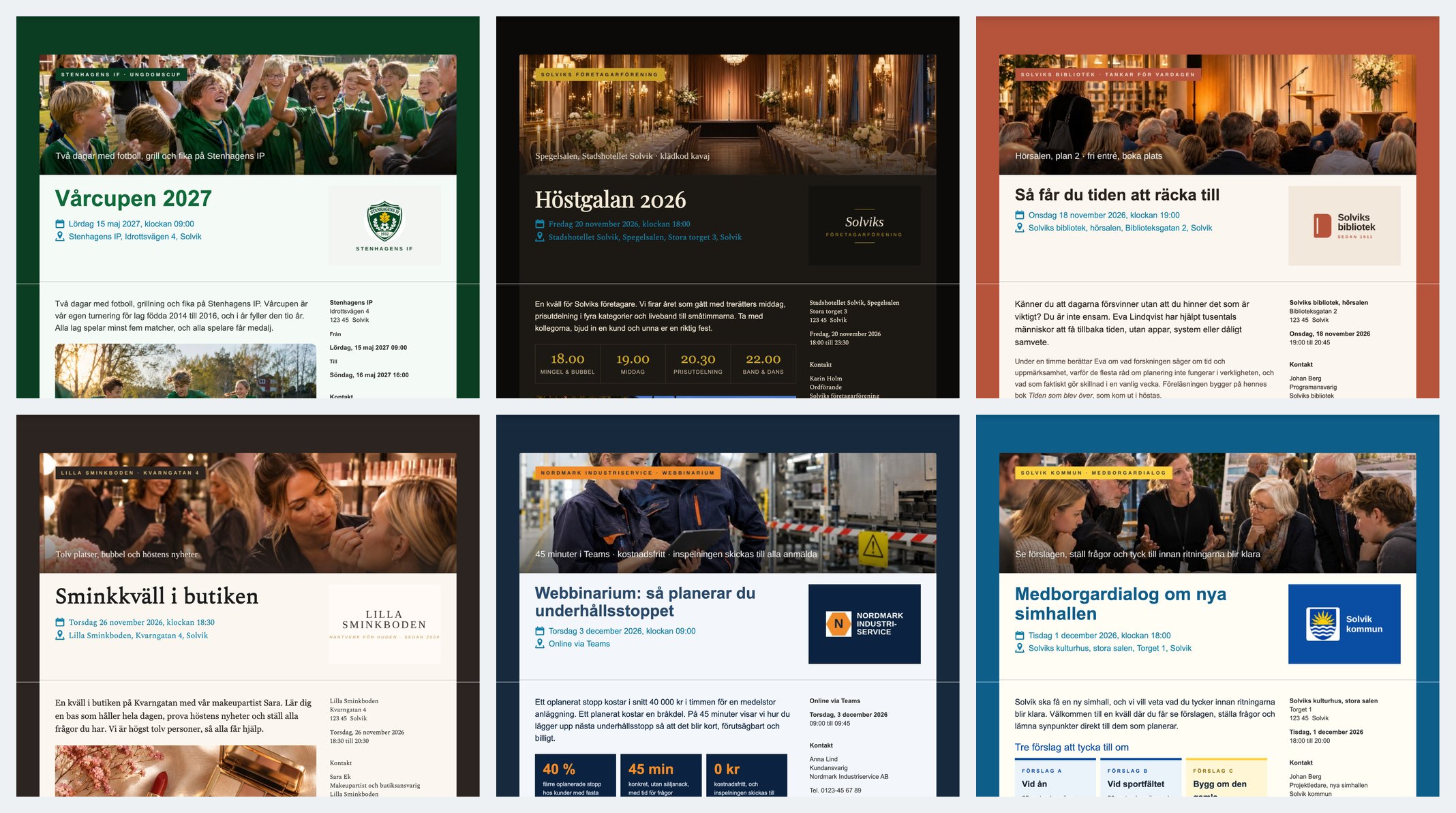
We built six registration pages in an ordinary Paloma account, with the same prompts and steps as above, to show how it works for different kinds of events. The difference from when you do it yourself is that we had an AI assistant do the work in Paloma for us; more on that further down. The senders are made up, so that you can see how a brand profile becomes a page without us showing any customer's event. Notice the two background colours, one around the page and one on it. They are what make the pages look so different.
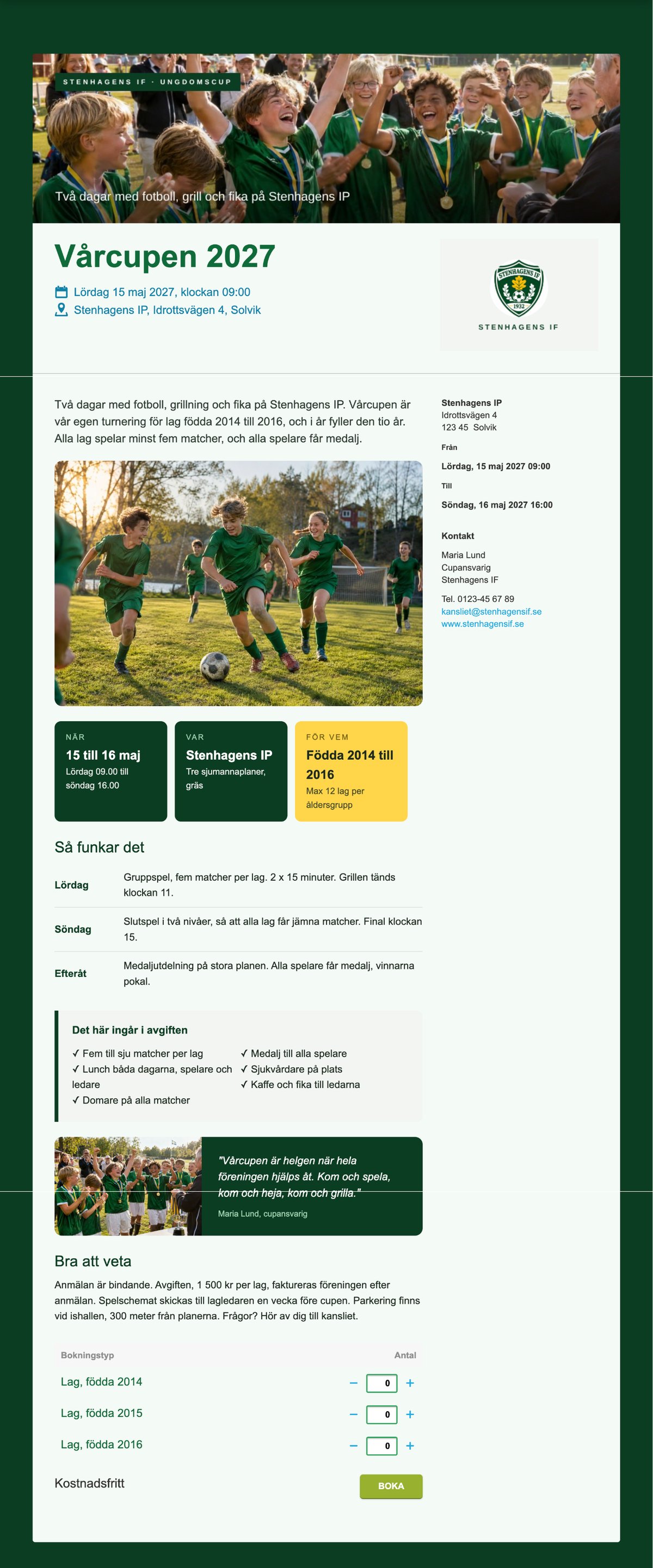
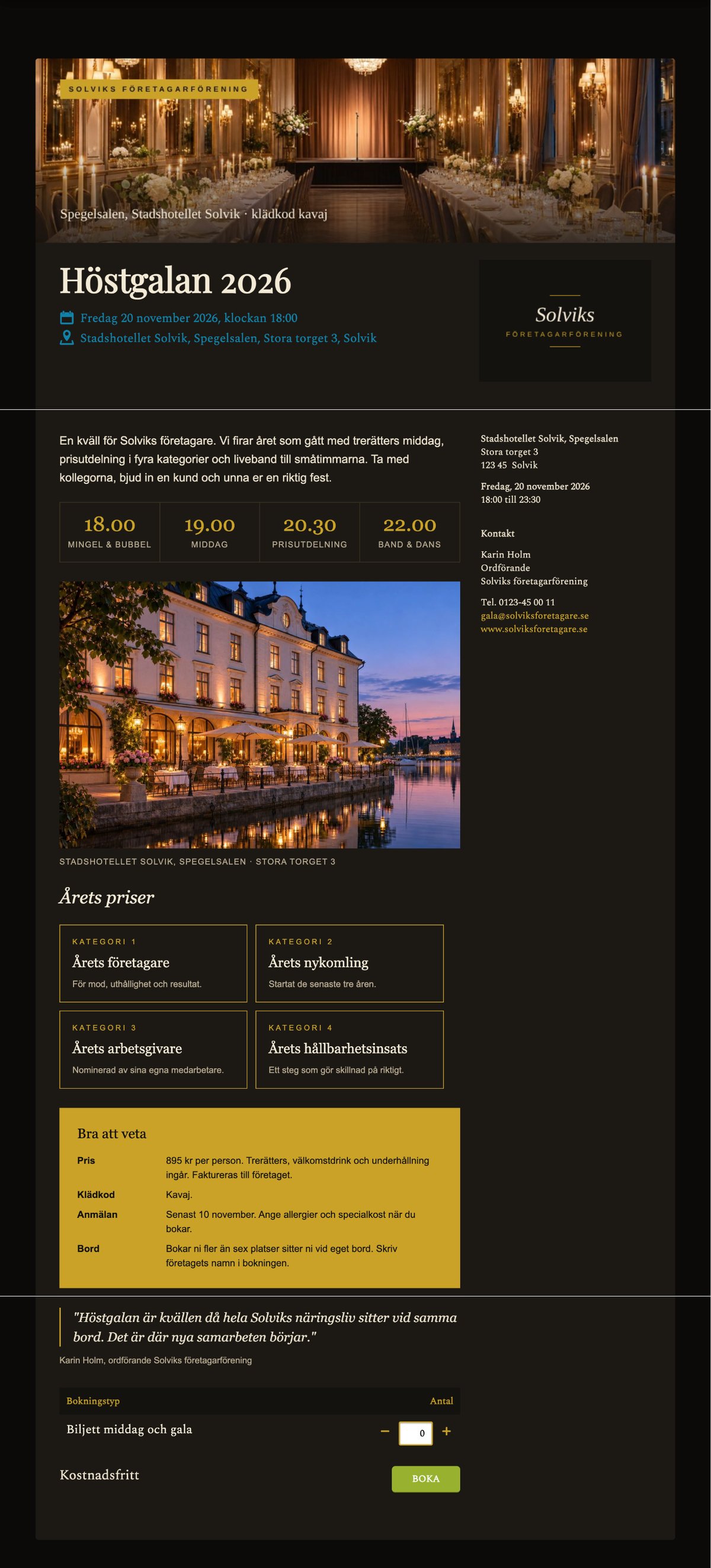
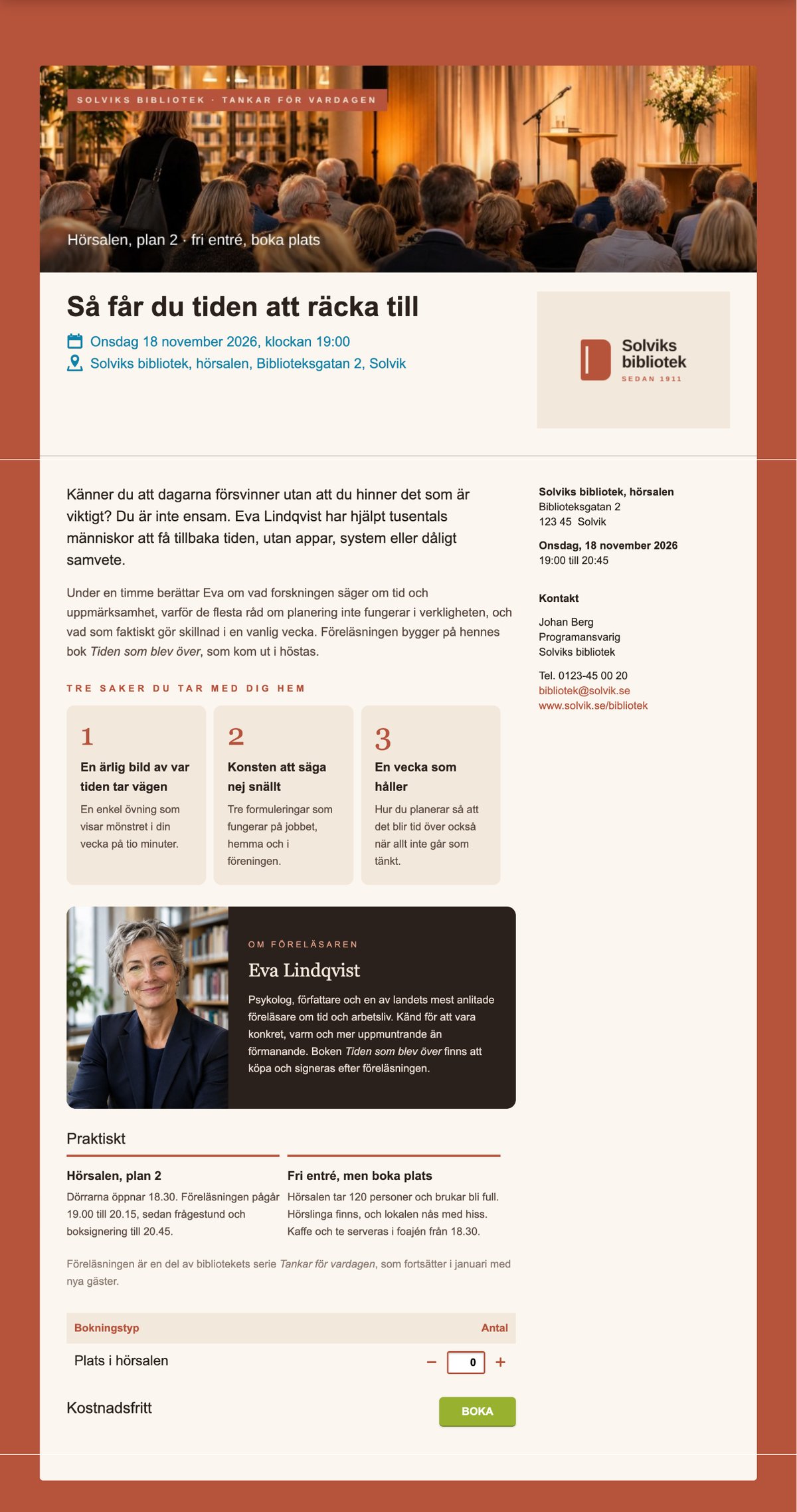
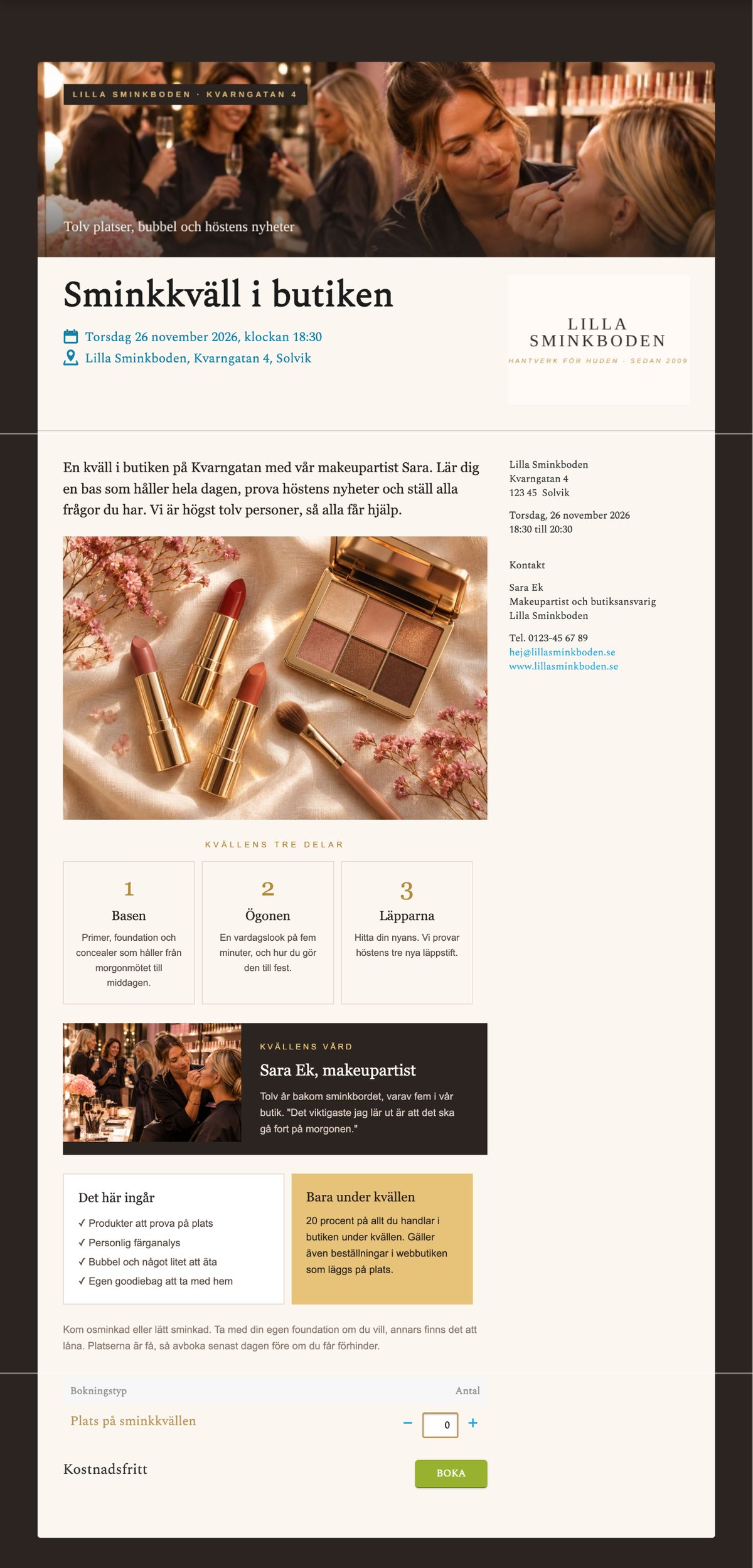
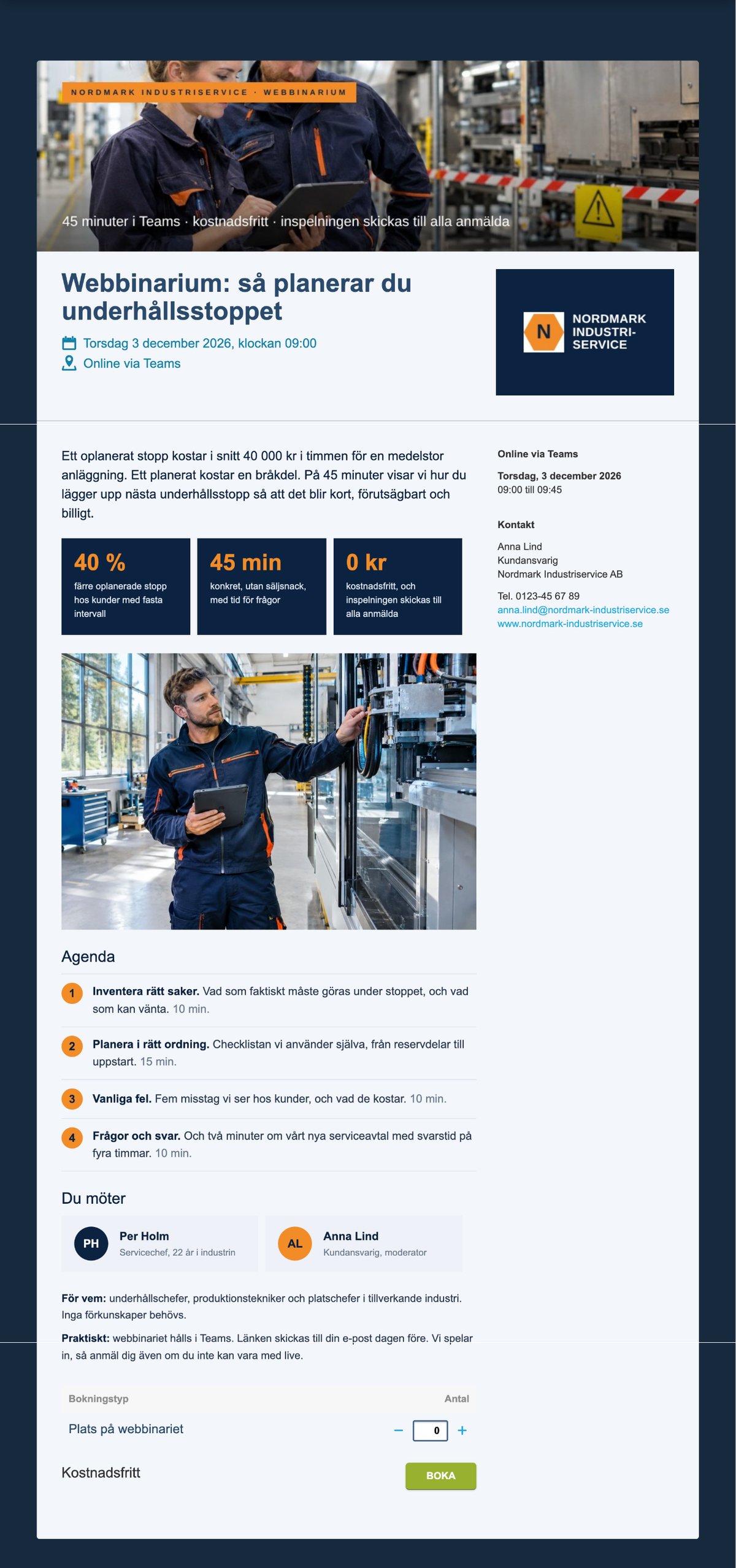
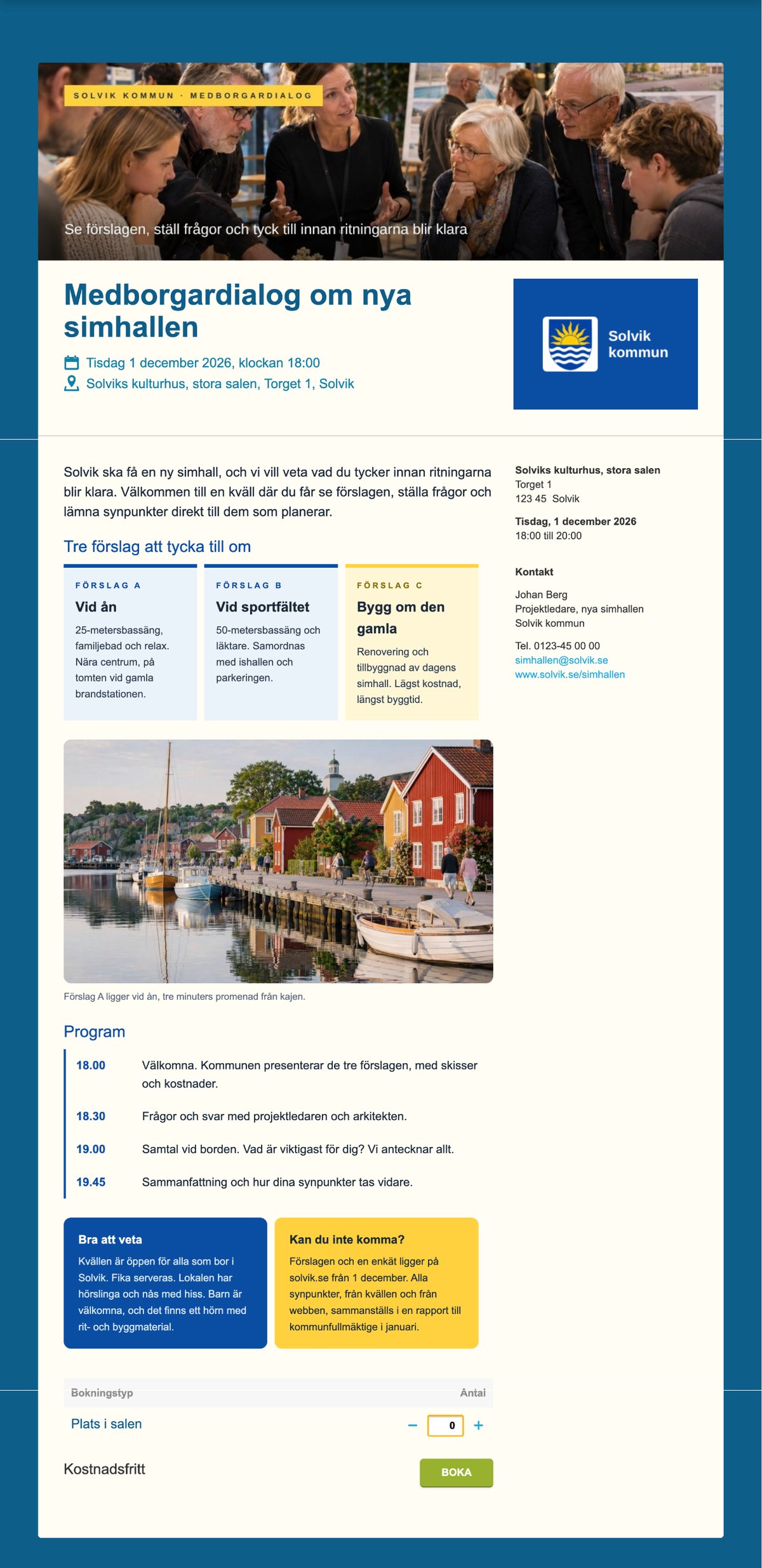
The first version of each page took under an hour, including the prompts, the images and the review. The pages differ in their colours, their images and how the text is divided up. Those are exactly the three things the AI helps with.
Common mistakes
- Trusting details the AI has made up. Times, prices and categories the AI filled in itself look just as credible as the real ones. Check every figure.
- Including what Paloma already shows. The heading, date, venue and booking button are already on the page. If they are in the code too, they appear twice.
- Forgetting the requirements in the prompt. Without "inline style" and "tables for the columns" the code can look good in the AI but turn out wrong in the editor.
- The same colour on and around the page. Two different background colours give the page depth. Two shades of the same colour are enough.
- Only looking on a computer. Many people sign up on their phone. Four columns that look airy on a computer become four narrow strips on a phone.
How we do it ourselves
We built the six examples with an AI assistant that works directly in Paloma. It wrote the texts, produced the code, pasted it into the event description, uploaded the images and chose the colours in the design panel. It made the photos, the portrait and the logos in ChatGPT, with prompts like the ones above. We reviewed the pages and asked for changes, much as in step 5. It took one evening for all six, and another evening when we replaced the first drawn headers with photos the AI had made.
That says something about Paloma Event too: no new feature was needed to make pages that look this different. The description field, the images and the design panel were already there. Want help with your first page? Get in touch via the contact page.
Frequently asked questions about event pages with AI
Do I need to know HTML?
No. You only need to copy the code from the AI and paste it into the source view in Paloma. If you want to change something afterwards you can edit the text directly in the editor, or ask the AI for a new version.
Does the code work in Paloma without changes?
Yes, if you include the requirements from step 3 in the prompt. The code we got from ChatGPT worked straight away. Afterwards we corrected the details, removed things that were shown twice and adjusted how the page looked on mobile. We did not have to write any code ourselves.
Which AI tool should I use?
The prompts work in ChatGPT, Claude and Gemini. All three can write HTML with inline styles. Use the one you already have.
Where do I set the background colour around the page?
In the design panel to the right of the event page, under General. There you find the outer background colour (around the page), the inner background colour (on the page), the text colour and the link colour. Under Header you change how the heading looks, and under Booking the colours of the booking table.
Can I use images in the description?
Yes. Add the large image as the cover image and the logo as the title image under Header. Images in the text itself you upload to Paloma's file archive and link to from there, as we have done in the examples. Images from other websites can disappear. That is why the prompt says no external images should be used.
May I use images that AI has made?
Yes, in most cases. The images in this guide's examples were made with ChatGPT, and using them for your own events is allowed under the tool's terms. Read the terms of the tool you use, never ask for an image of a real person or a real brand, and say that the image was made with AI: for a photorealistic image that could be mistaken for genuine, a deepfake, the EU AI Act requires it. There is more in the fact box in the section on images.
Why do the columns look strange on mobile?
Columns made with tables keep their width on mobile. Two columns usually work well, but four get cramped. Ask the AI for fewer columns or shorten the text in the boxes, and then preview the page on mobile.
What happens to the heading and the date that Paloma shows?
The heading and the date are taken from the event's settings and shown above the description. The booking is shown below. That is why they should not be in the code. If you change the date in the settings, the page updates by itself.
How long does it take?
The prompts take a few minutes. Pasting the code, adding images and setting the colours takes a quarter of an hour. What takes most time the first time is reviewing the page, and that may take the time it needs.
Build your first event page today
Create a free account, paste in the code and preview the page in a few minutes. The free account gives you 80 event participants and 250 emails a month.
Create a free account