Tips for an inviting invitation to your event

Start guides – Paloma

Get started with contacts
Get started with email campaigns
Get started with Events
Get started with Marketing Automation

Get started with contacts in Paloma

In Paloma you can easily keep your contacts' information and interests in order. You simply create lists and contact fields for exactly the data you want to segment on.

Step 1 – Create lists

Start by creating lists for your different types of mailings. Give them clear names, for example Newsletter, Campaigns, Internal communication, Events.

Focus

Time: about 15–20 min
Result: Contacts created
Level: Beginner
Next step: Think about what other information you can use for things like personalization.

Create a contact list in Paloma

Step 2 – Create contact fields

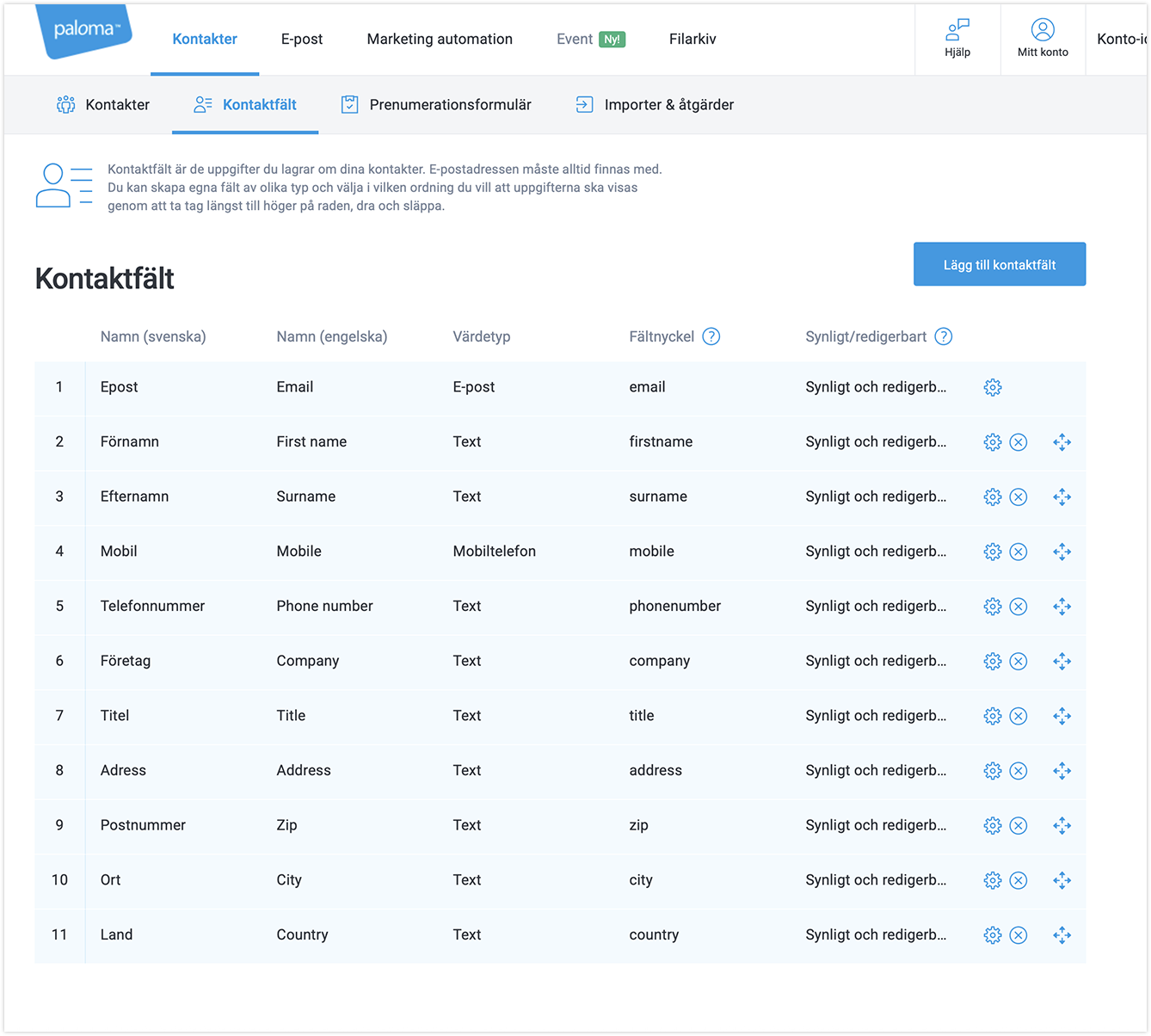
Paloma already has standard fields such as Email, First name, Last name and Mobile number. Add your own fields for the information you need to segment on, for example Membership number, Department or Area of interest.

Contact fields in Paloma

Step 3 – Create forms

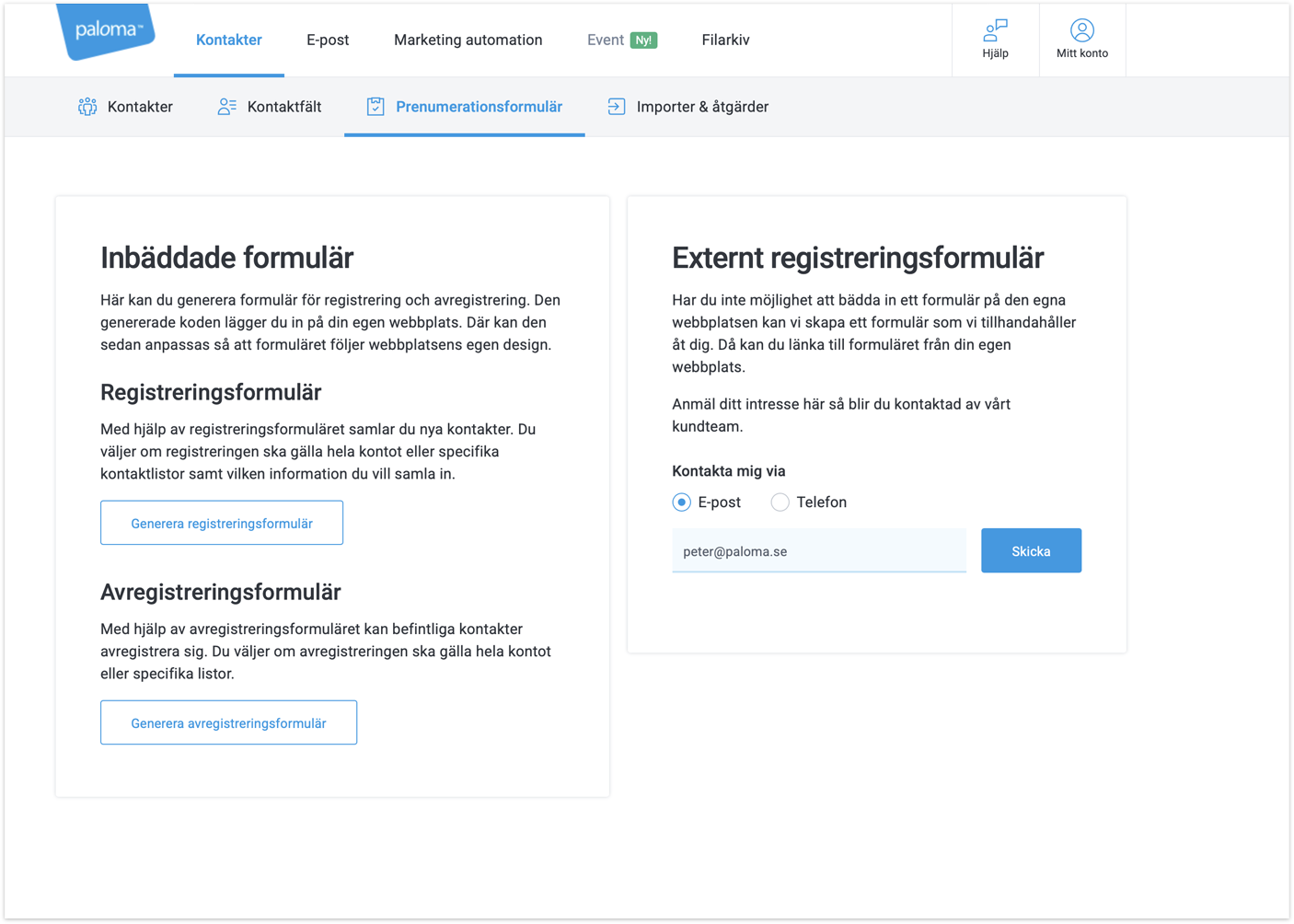
Build forms that you embed on your website or share via a link. When a contact fills in the form, they end up in the right list, and you choose which fields they fill in.

Create forms in Paloma

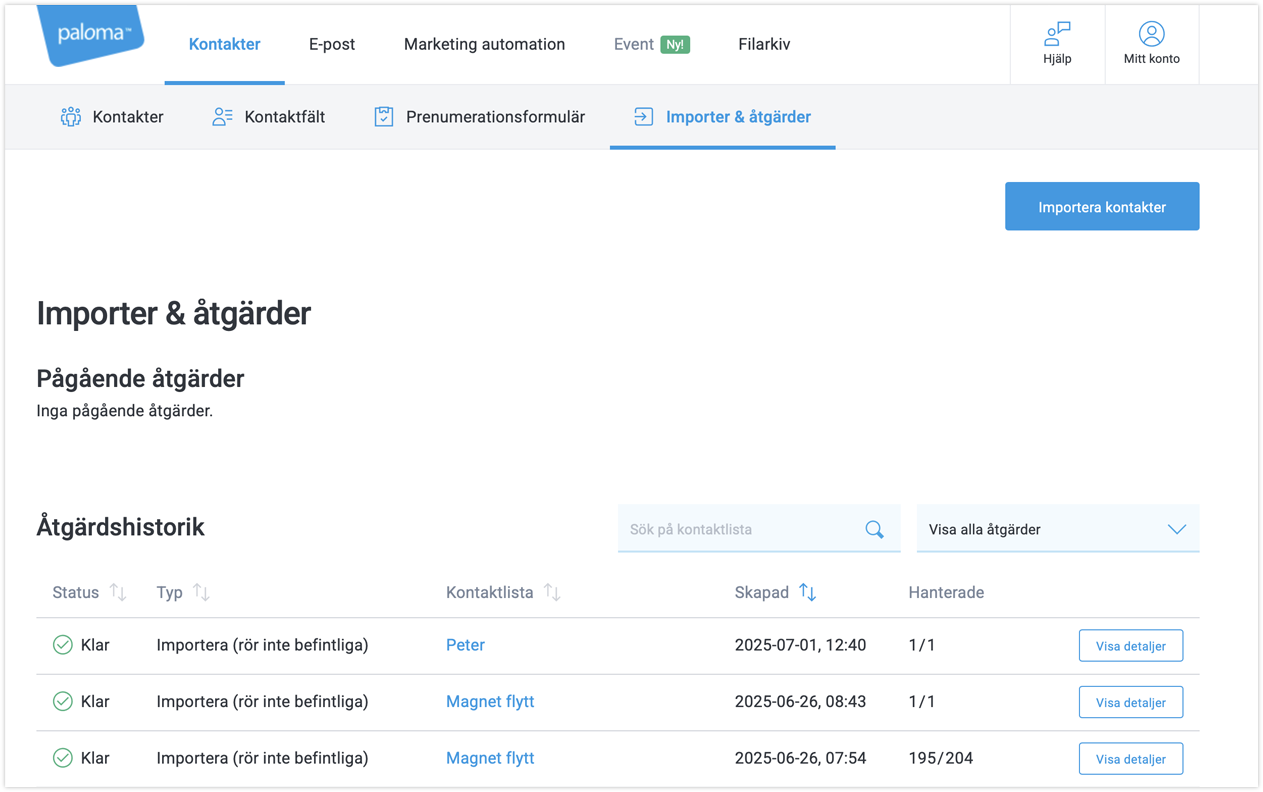
Step 4 – Import contacts

You can import contacts from an Excel file with contact data in columns. You can also set up an API connection that automatically updates your lists from your website or other systems.

TIP – Feel free to create a contact list with your own contact for proofreading. Perhaps you want to see what your mailing looks like both when it lands in the inbox of your work email and in your private inbox?

Import contacts in Paloma

Get started with email campaigns in Paloma

With Paloma you can create and send good-looking, mobile-friendly newsletters in just a few minutes. Follow the steps here and you will have your first mailing ready before your coffee gets cold.

Step 1 – Choose contacts

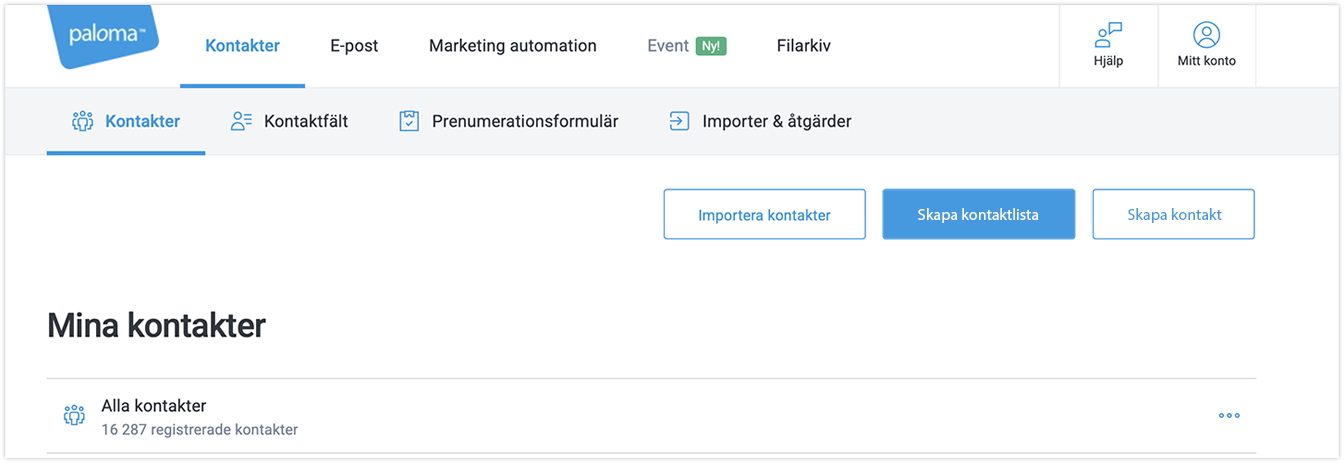
Start by creating a contact list, then you can easily import an Excel file or paste in the contacts.
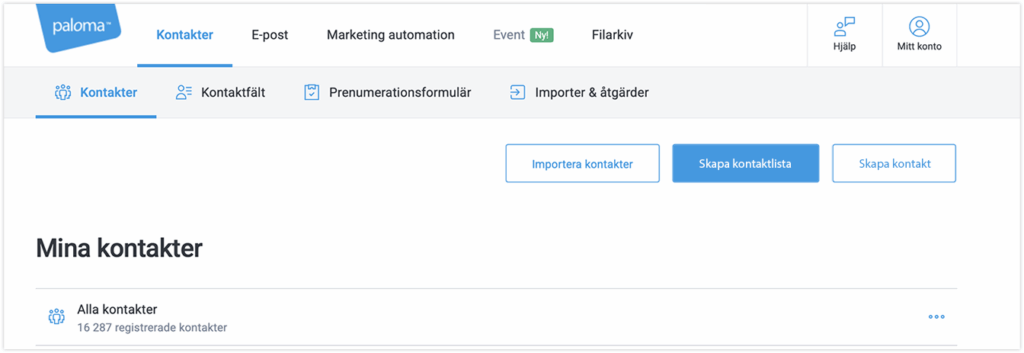
Create a contact list in Paloma


Step 2 – Go to email

Go to Email in the menu and click Create letter.
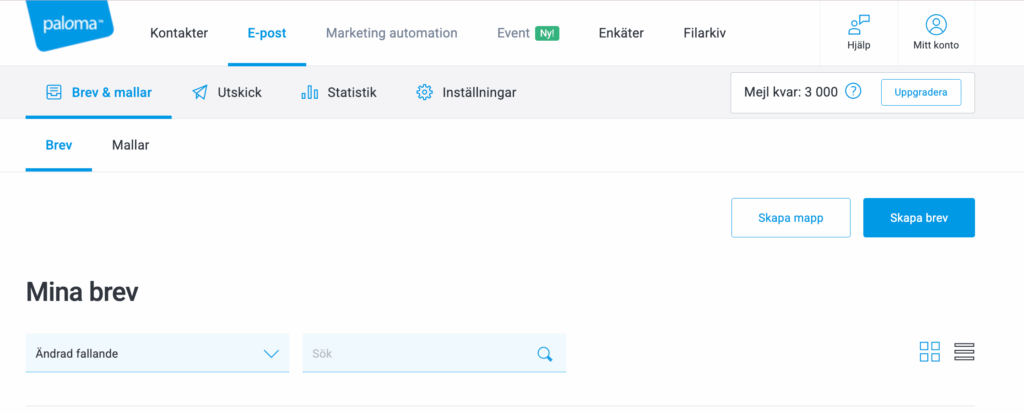
Create a letter in Paloma


Step 3 – Choose a template

Choose a ready-made template or start from scratch. All templates are mobile-friendly and easy to adapt further to your wishes.
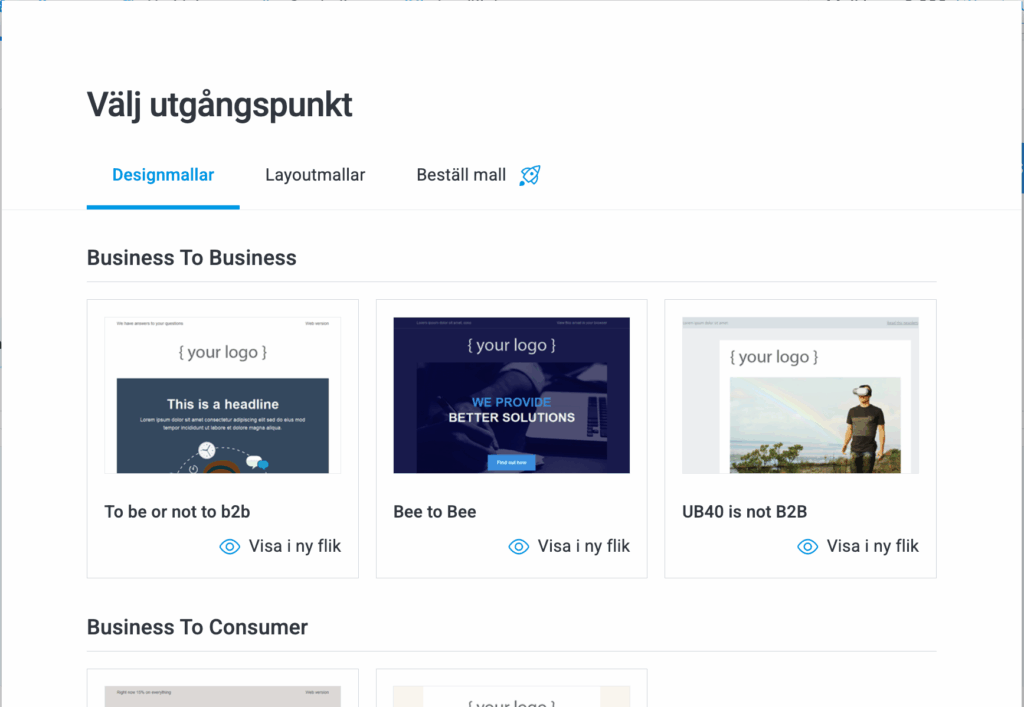
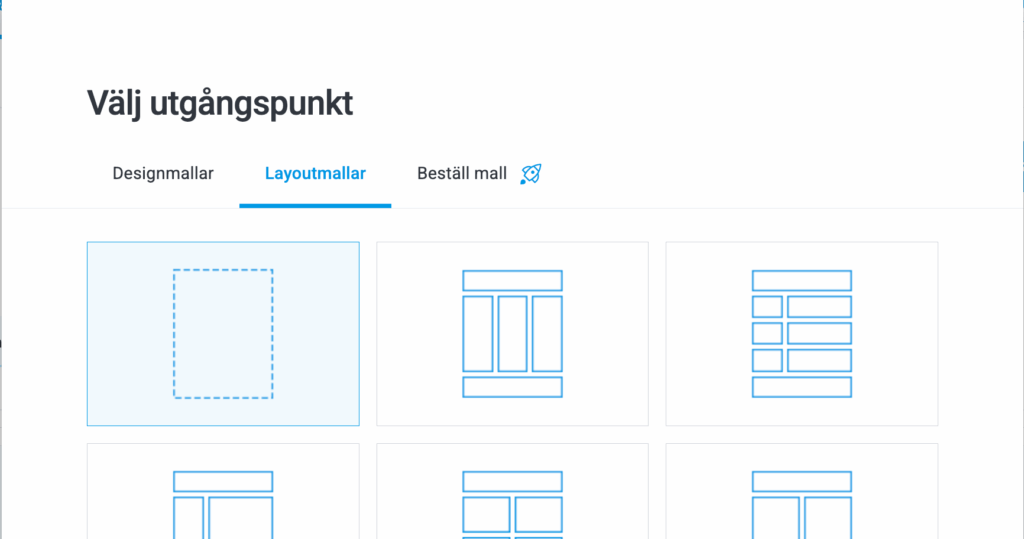
Choose a template in Paloma

Layout templates in Paloma


Step 4 – Add content

Use our drag & drop editor to add text, images, buttons, links and much, much more.
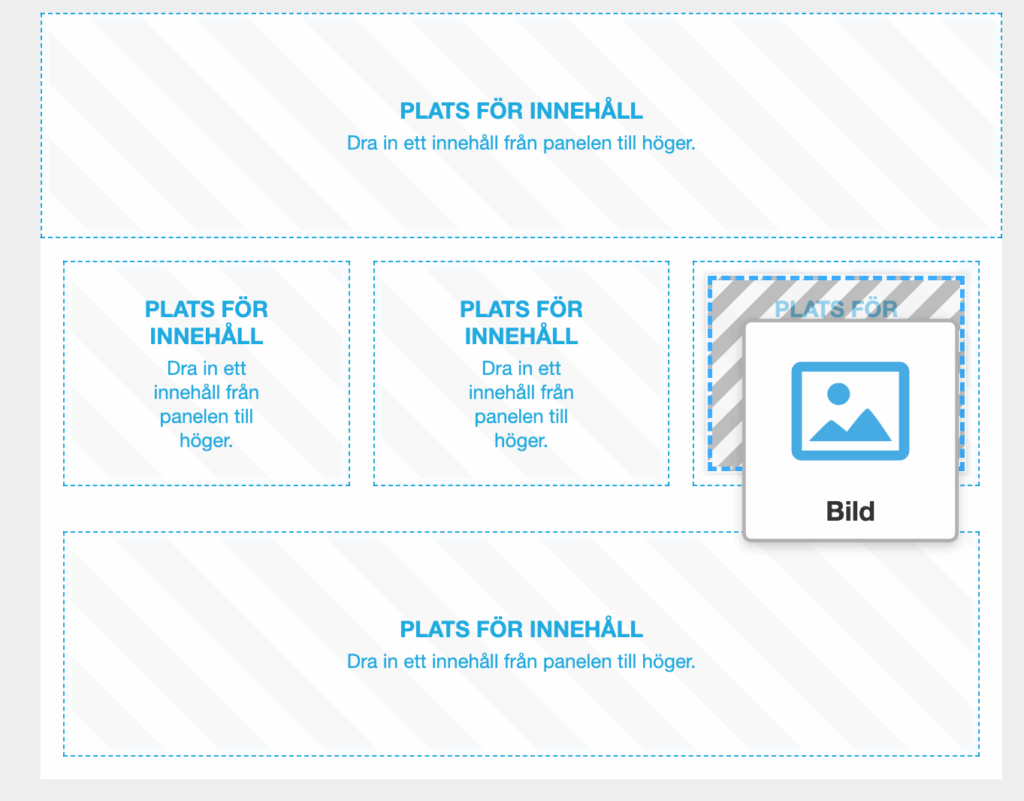
Drag and drop in Paloma.

Step 5 – Preview and test

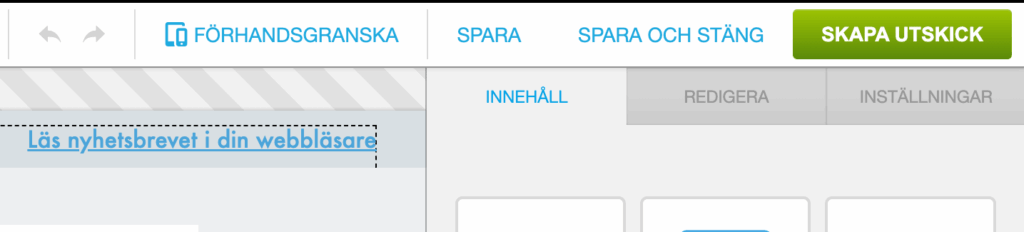
Click Preview and send a test email to yourself. Here you can also see the preview for mobile.
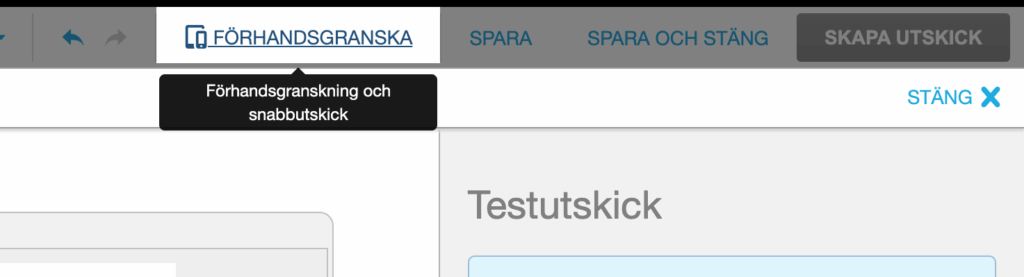
Preview in Paloma.


Step 6 – Send or schedule

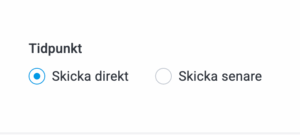
Choose whether you want to send right away or schedule a time that suits your audience.
Create a mailing in Paloma.

Send right away or schedule a mailing in Paloma.

Focus

Time: About 15 min
Result: First newsletter sent
Level: Beginner
Next step: Add personalization or try one of our ready-made campaign templates.

Get started with Events in Paloma

This is where you quickly create an event with tickets, registrations and automatic confirmation.

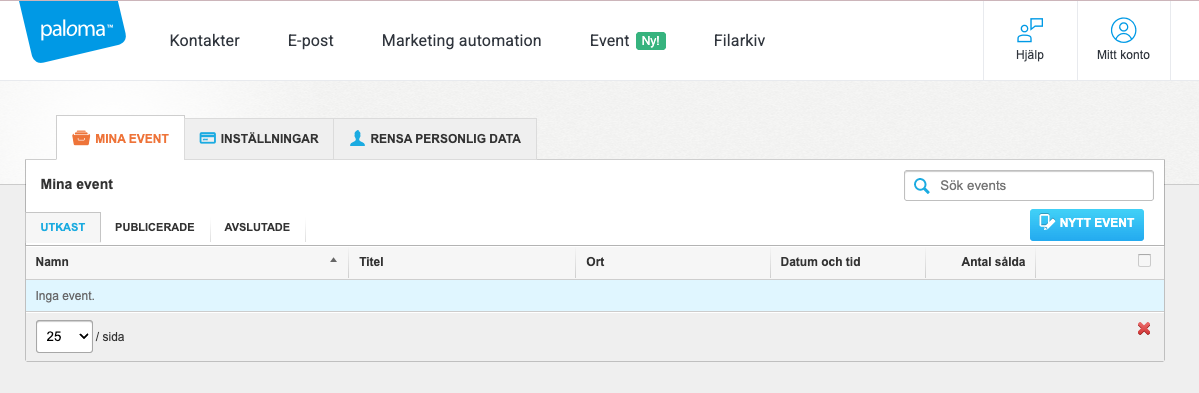
Step 1 – Create a new event

Click Events in the menu and choose New event.

Create a new event in Paloma.

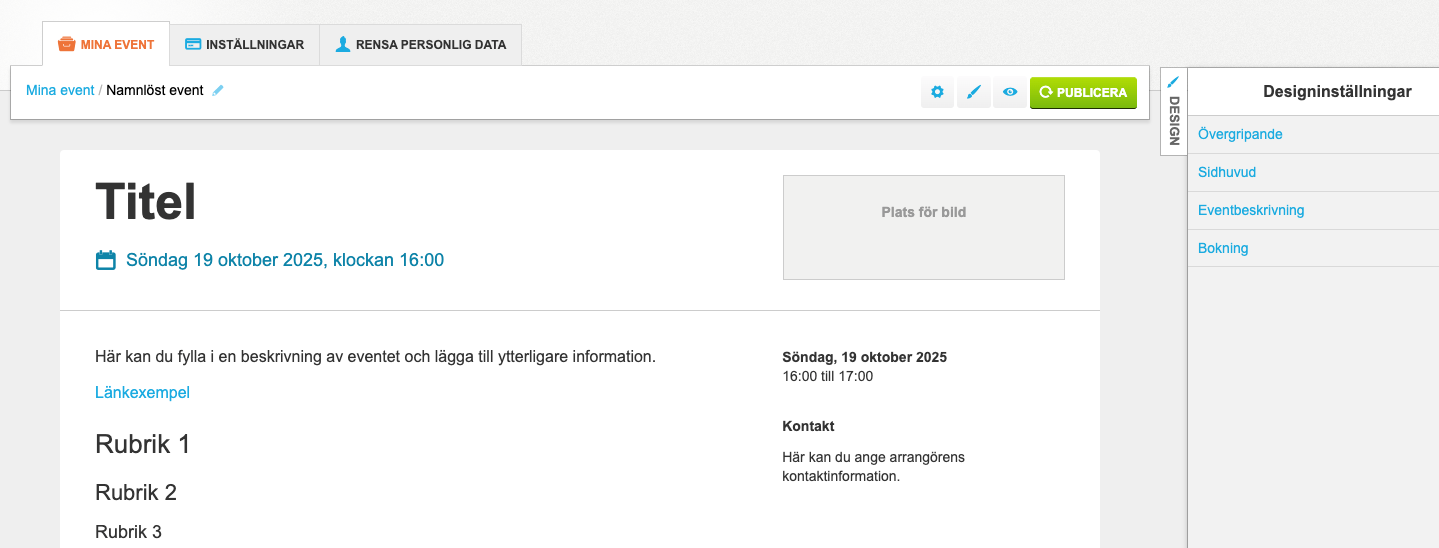
Step 2 – Design your event

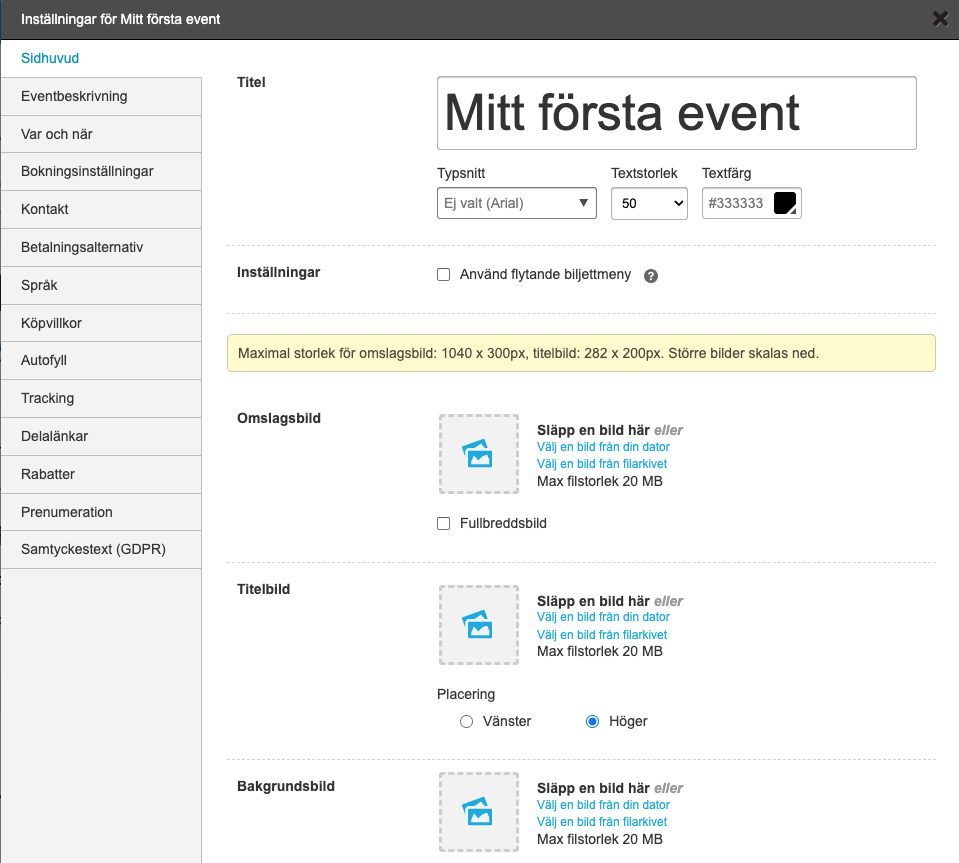
Add a title, date, venue and description, and design it.

Design an event in Paloma.

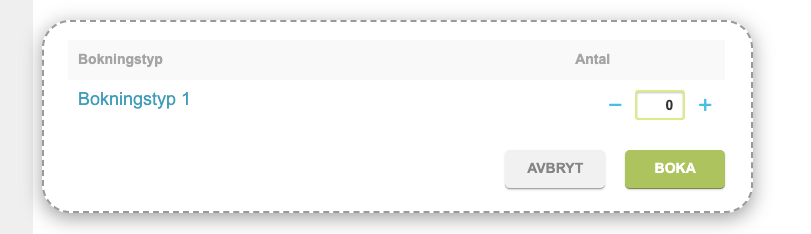
Step 3 – Add booking types/tickets

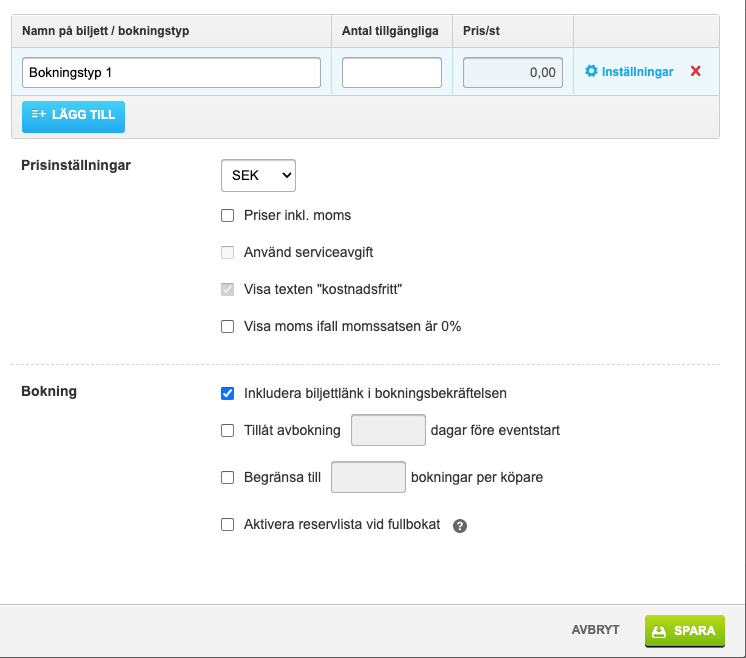
Set the price (or mark it as free), the number of places and any registration deadline, and much more.

Add a booking type in Paloma.

Create tickets in Paloma.

Step 4 – Design the invitation

Use the email module to create a good-looking invitation, or start from a template.

Design a registration page in Paloma.

Step 5 – Publish and share

Publish the event and share the link in newsletters, on social media or on your website.

Step 6 – Follow up on the participants

See bookings in real time, export lists and send reminders.

Focus

Time: about 20 min
Result: First event published
Level: Beginner
Next step: Connect your event to a newsletter or add an automated confirmation email.

Get started with Marketing Automation in Paloma

With automation you save time and send the right message at the right moment – completely automatically.

Step 1 – Create a new flow

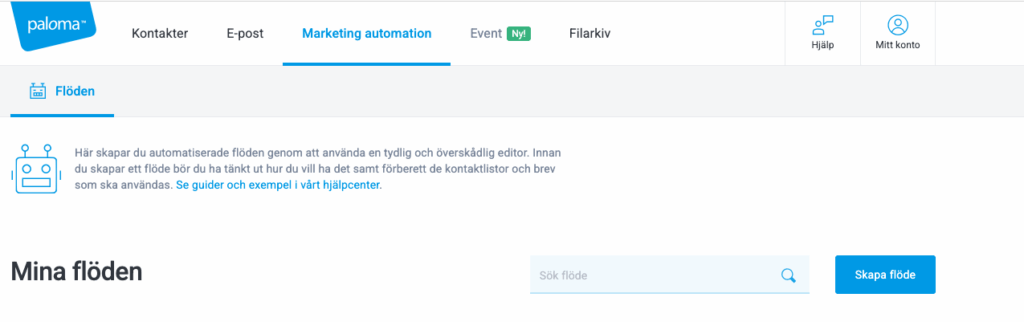
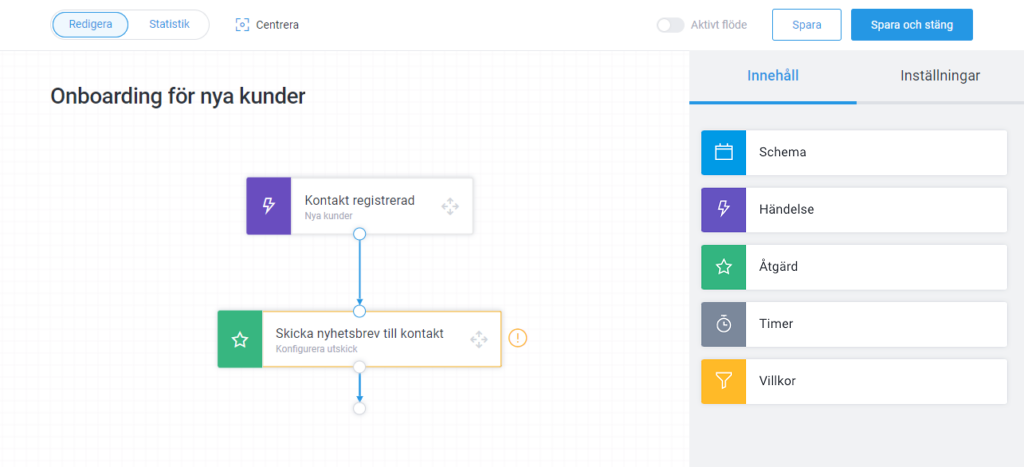
Go to Marketing Automation and click Create new flow.

Create a flow in Marketing Automation, Paloma.

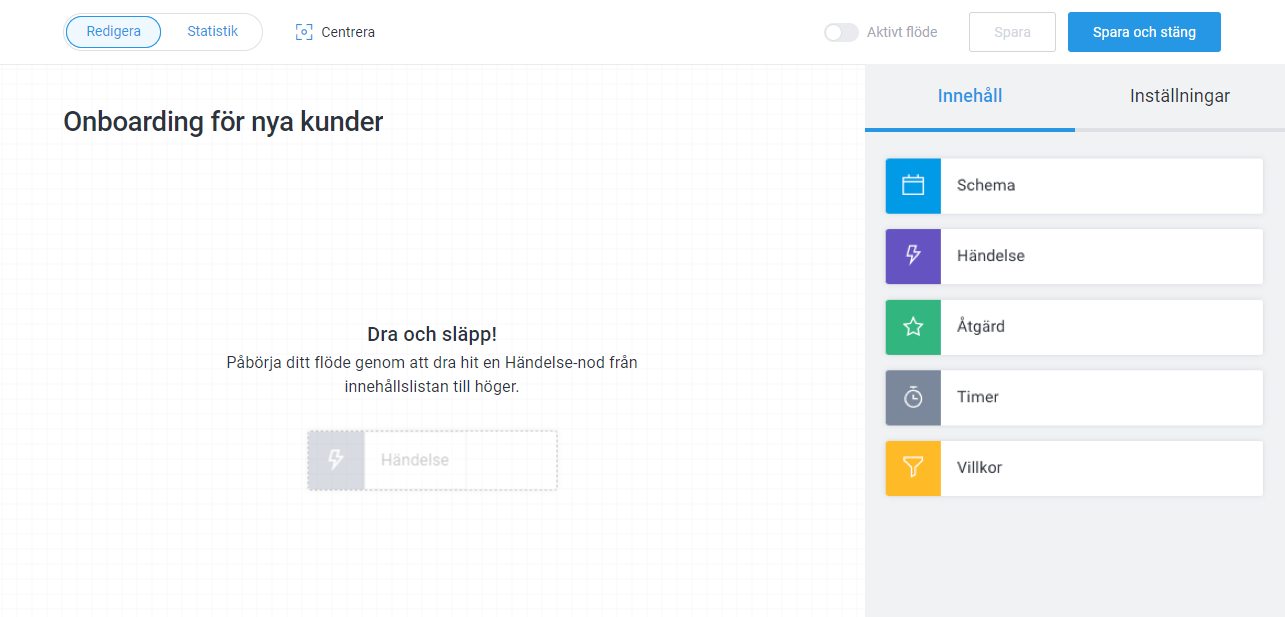
Start simple by building an onboarding flow with an event node and an action node where you add your welcome email.

Step 2 – Activate and test the flow

Use a test contact and check that everything works as it should.

Activate a flow in Paloma.

Step 3 – Follow up

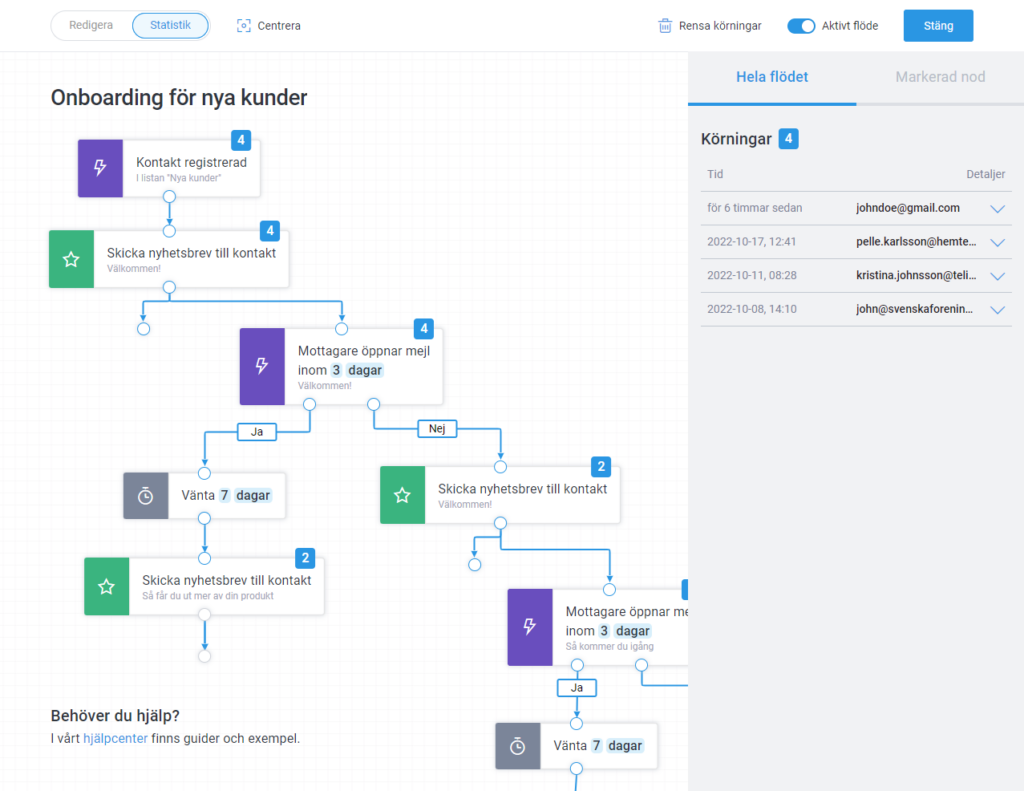
Follow the statistics live, then follow up on the finished flow to optimize it.

Follow up statistics for Marketing Automation in Paloma.

Focus

Time: about 15–20 min
Result: First automated flow up and running
Level: Beginner
Next step: Try segmentation in a more branched flow to send different messages to different audiences.